How to Extract Slides from a Webinar Recording
You signed up for a webinar, the replay arrived, and what you actually want is the deck: something to flip through in five minutes instead of watching an hour of video. If you can ask the presenter or the host for the slides, do that first. The original file has editable text and every slide, including the ones they skipped.
When the deck is not on offer, the replay still holds every page that was on screen. Video2Any pulls those pages out as a deck of images you can review and export. A webinar is messier than a lecture, though, so most of this guide is about what else ends up in the recording and how to clear it out.
On this page
Step 1: have a file you are allowed to use
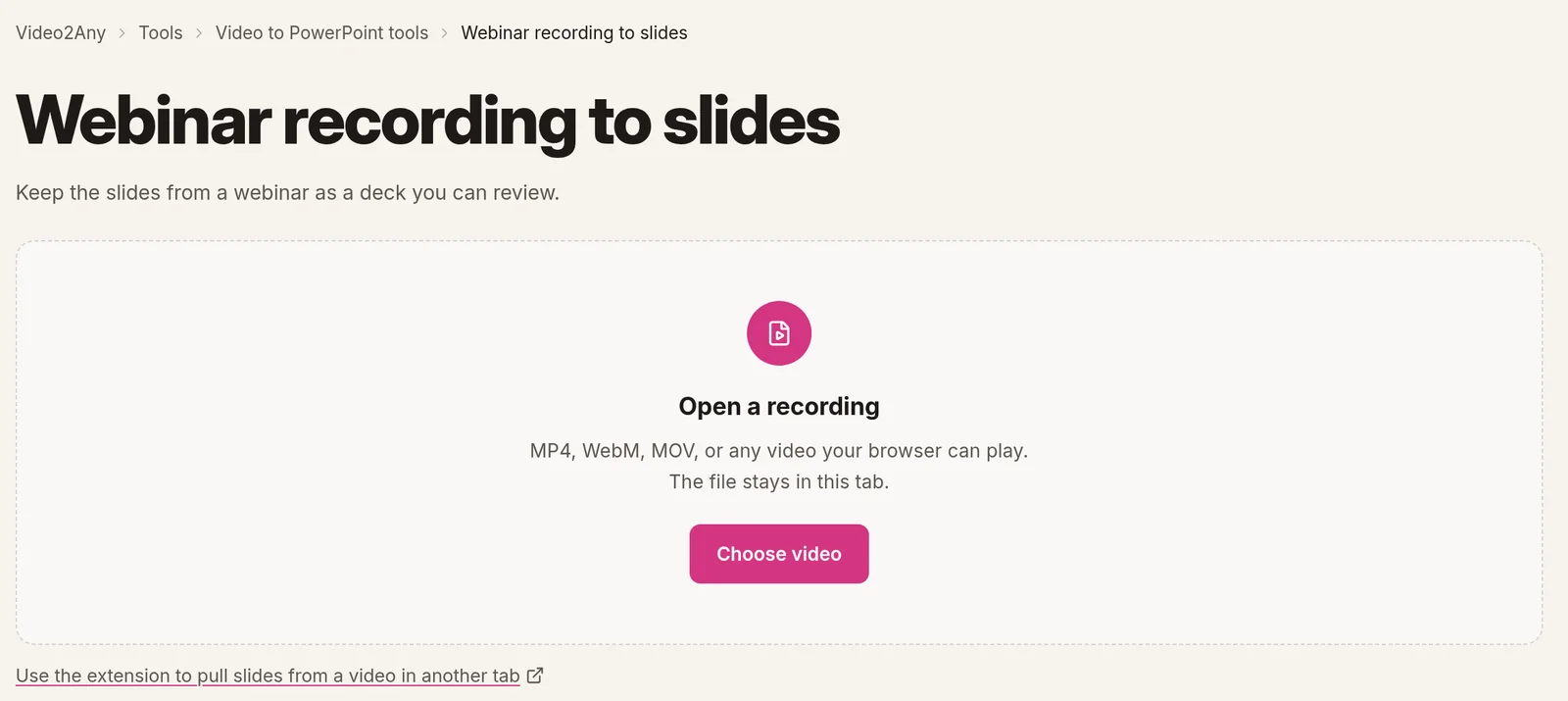
Video2Any works on a video file, not on a replay link. There is no box for pasting a URL. The webinar recording to slides page takes MP4, WebM, MOV or any video your browser can play, and the file stays in that browser tab.
There are three usual ways to get there:
- You ran the webinar. The platform's own recording is your file. Download it from wherever your platform keeps recordings.
- The host offers a download. Some replays come with a download button or a file in the follow-up email. Use that.
- The replay only plays in the platform's player. The Chrome extension can read the pages from the tab while the replay plays. Use it only when the event's terms allow notes or captures from the replay.
Either way, Video2Any processes a recording you already have the right to use. It does not give you any rights to reuse someone else's slides, and it is not a way around a replay the host chose not to share.
Step 2: extract, then clear out what is not a slide
Choose the file and start. Slide extraction runs in your browser, and the video is not uploaded. The first 30 minutes of each recording are free without an account, and a free account adds one full-length recording.
Video2Any keeps a picture each time the screen changes and then holds still. That is how a presented deck behaves, and it is also how a lot of other webinar moments behave.
Expect these among the pages:
- The holding screen. Many replays open on a "starting soon" card or a countdown before the host goes live. It holds still for minutes, so it becomes a page. Delete it in Review.
- Camera views. The host's welcome, a panel on camera, the Q&A at the end. After extraction, Video2Any sets aside frames that look like a camera view, an audience or a blank screen, and one line above the grid says how many. Nothing is deleted: Put them back returns them. The camera-frames post explains how that check works and how often it is wrong.
- Polls and overlays. A poll or a question banner on top of the shared screen changes the picture, so it can produce an extra page. Keep it if the poll results matter to you; otherwise delete it.
- Revisited slides. During Q&A, presenters often jump back to slide 12 to answer a question. That slide comes out twice, once in order and once near the end. Delete the later copy, unless you want a record of what was revisited.
- A speaker tile over the slides. If a small video tile sits over the corner of the shared screen, the same slide can look different from second to second. Ignore an area lets you draw up to four boxes over spots like that, and detection reads the recording again without looking there.
- Bullet builds and live demos. A slide that reveals one line at a time is caught several times; the editor folds those frames into one card and keeps the most complete one, and Split them all undoes it. A live software demo changes the screen constantly, so it can produce a run of near-identical pages. Keep two or three and delete the rest, or move the pages slider towards Fewer.
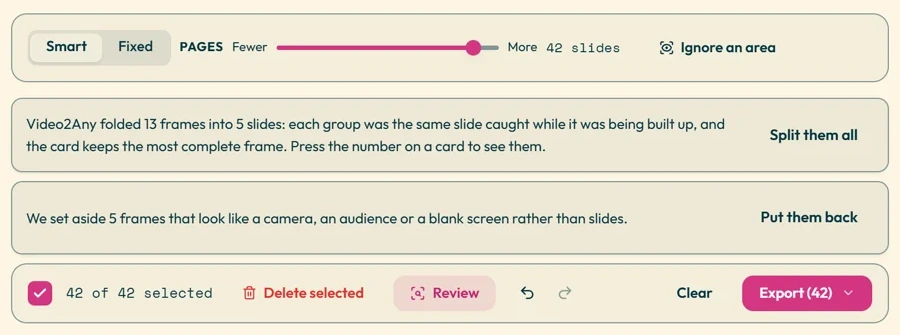
If you still have far more pages than the deck could have had, our guide to cutting a 300-slide export down to 40 goes through the rest. Then step through Review once and delete anything that is not a slide.
Step 3: export
Export to PowerPoint, PDF, Word, Markdown with images, or a ZIP of page images. You can reorder, crop and annotate pages first. Each page is a picture of what was on screen: it looks the way it did in the webinar, but the text and charts are not rebuilt as editable objects. On the free tier, PPTX and PDF exports end with a short Video2Any credit page; the pricing page has the current plans.
Pick by where the file is going. PowerPoint if you will present from it or merge it into your own deck, PDF if you are sending it to someone or printing it. Which export format to pick covers the other options.
Adding what was said
A webinar's slides are often only half of it. The useful part may be a question answered out loud, or a number the speaker mentioned that is not on any slide. Two optional extras come after the slides:
- Spoken notes. The webinar to notes page writes notes under each page from what was said while it was on screen, with the timestamp, and exports Markdown, Word or PDF.
- A transcript. The full transcript in spoken order, as TXT with timestamps or as SRT.
Both need you to sign in, and both have a few free runs per account before they are charged; pricing has the details. Starting them sends the audio for processing, and notes written against the pages also send those page images. Slide extraction itself sends nothing. Questions typed into the webinar's chat only reach the notes if someone read them out loud.
When this is not the right tool
- The host can send the deck. Use the original. It has every slide and editable text.
- It was a panel with no slides. A conversation on camera has no pages to recover. A transcript or spoken notes will help more; see why an interview will not become a slide deck.
- The event's terms rule it out. Some webinars forbid recording or reusing the replay. Respect that.
- You need slides you can edit. The pages are images. If you need to change the text, rebuild those slides by hand, or ask for the original. What "editable PPTX" actually means explains the difference.
If your webinar ran on a meeting platform, the Zoom recording guide, the Teams recording guide and the Google Meet guide cover where those recordings are saved. Once you have the file, the steps above are the same.