How to convert a Google Meet recording to PowerPoint
Someone presented a deck in a Google Meet call, the call was recorded, and now you want the slides, not an hour of video. If the presenter can send the original file, ask for it first: it has editable text and every slide, including the ones they skipped. When that is not possible, the recording holds every page that was on screen while they presented.
Getting them out is two steps: get the recording as a video file, then pull the presented pages out of it. The first step is where most people get stuck, so it comes first.
On this page
Step 1: get the recording file
Google Meet saves a recording as an MP4 file in Google Drive, not in Meet itself. According to Google's Meet help pages:
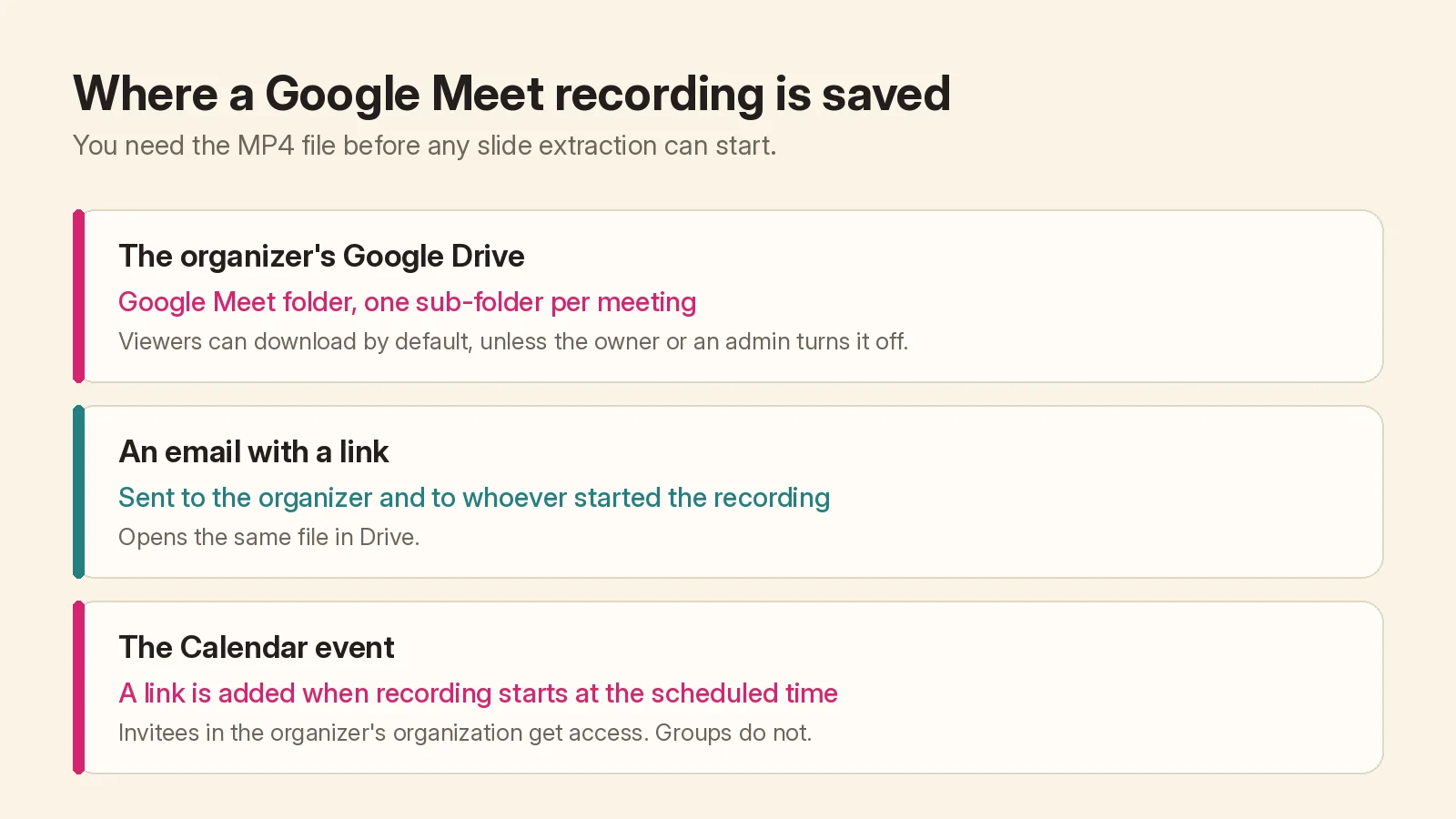
- The file lives in the organizer's Drive. Recordings go to the meeting organizer's Google Drive, in a folder called Google Meet, with a sub-folder for each meeting. Older recordings made before the July 2026 change sit in a folder renamed Legacy Meet Recordings, inside the same Google Meet folder.
- Two people get an email. The organizer and the person who started the recording receive a link to it.
- Invitees get a Calendar link. If the recording started at the scheduled time, the link is added to the Calendar event, and individual participants from the organizer's organization get access automatically. Groups do not.
The organizer is whoever created the Calendar event, or whoever started the meeting from the Meet homepage or Gmail.
To save your own copy, select the recording in Drive, click More, then Download. If you only have view access, the Download option may be missing. Drive file owners can turn off download for viewers and commenters, and Workspace administrators can block downloads with a data protection rule. Either way it is the owner's or the organization's decision. Ask the organizer for the file, or for the deck itself, rather than looking for a way around it.
Two more things to know before you start:
- Processing takes a while. Drive shows "Still processing" until a fresh recording is ready, and longer meetings take longer.
- Quality is set at recording time. When a screen is shared, Google says the recording resolution follows the largest shared screen, up to 1080p, and administrators can opt out of 1080p. Slides that were small or blurry in the recording will be small or blurry in the deck.
Video2Any does not connect to Google Drive or sign in to your Google account, and there is no box for pasting a Drive link. It needs a video file on your computer that you are allowed to use.
Step 2: pull the slides out
Open the Google Meet recording to slides page, or the general extract-slides page, and choose the MP4. Slide extraction runs in your browser, and the video is not uploaded. The first 30 minutes of each recording are free without an account.
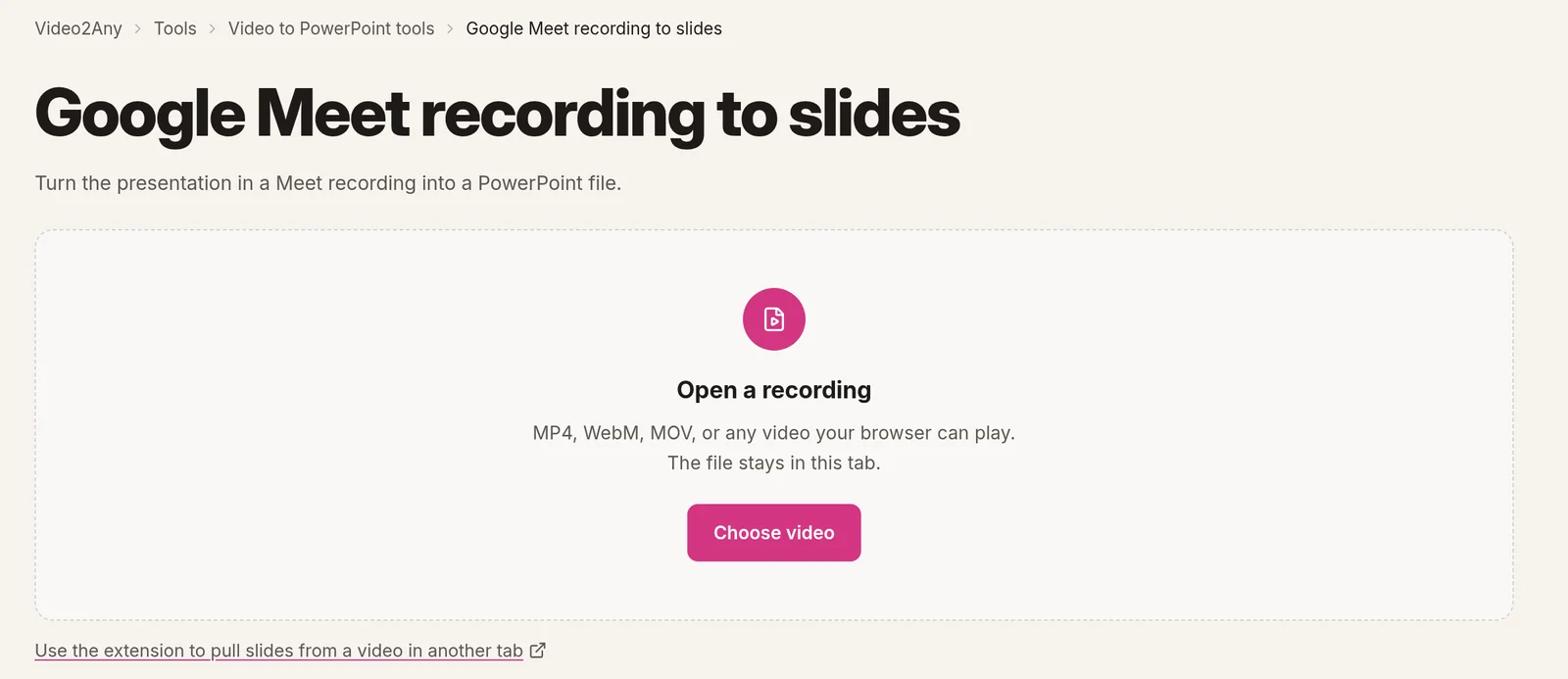
Video2Any keeps a picture each time the screen changes and then holds still, which is how a presented deck behaves. Meet recordings include the active speaker as well as anything presented, so a few frames that are not slides are normal. The editor has a control for each kind.
- Camera frames between slides. Before and after someone presents, a Meet recording shows people. After extraction, Video2Any sets aside frames that look like a camera view, an audience or a blank screen, and says how many it set aside. Nothing is deleted: Put them back restores them. The camera-frames post explains how the check works and when it gets it wrong.
- A speaker tile on top of the slides. If a moving video tile sits over part of the presented screen, the same slide can look different from second to second. Ignore an area lets you draw up to four boxes over spots like that, and detection runs again without looking there.
- Bullet builds. A slide that reveals one line at a time is caught several times. The editor folds those frames into one card and keeps the most complete one; Split them all undoes it. If you still have far more pages than the deck had, move the pages slider towards Fewer, and see our guide to cutting a 300-slide export down to 40.
Then use Review to step through the pages and delete anything that is not a slide, such as a browser tab someone shared by mistake.
Step 3: export, and open it in Google Slides if you like
Export to PowerPoint, PDF, Word, Markdown, or a ZIP of page images. You can reorder, crop and annotate pages first. Each page is a picture of what was on screen, so it looks the way it did in the meeting, but the text and charts are not rebuilt as editable objects. On the free tier, PPTX and PDF exports end with a short Video2Any credit page; the pricing page has the current plans.
If your team works in Google Slides, the PPTX opens there too. Upload it to Drive and open it with Google Slides, or use Import slides in an existing presentation. The slides arrive as images, exactly as they do in PowerPoint. Video2Any does not upload anything to Drive for you; that step is yours.
What about the words?
Meet has its own transcripts. If someone turned on Transcribe during the call, the transcript is saved in the organizer's Drive in the same Google Meet folder, and a link goes to the host, co-hosts and whoever started it. Check there first.
When there is no transcript, or you want the talk tied to each page, Video2Any can add spoken notes for each slide or a full transcript as TXT or SRT. Both are optional and come after the slides. Starting them sends the audio for processing, and notes written against the pages also send those page images. They use AI minutes, not the free extraction allowance.
When this is not the right tool
- The presenter can send the deck. Use the original. It has every slide and editable text.
- Nobody presented. A call with only cameras has no slides to recover. A transcript or written notes will help more.
- You cannot get the file. If downloading is turned off for you, the organizer is the person to ask.
Other meeting tools work the same way once you have a video file. The Teams recording guide and the Zoom recording guide cover where those files are saved.