Your video-to-PowerPoint export has 300 slides. Here’s how to get 40.
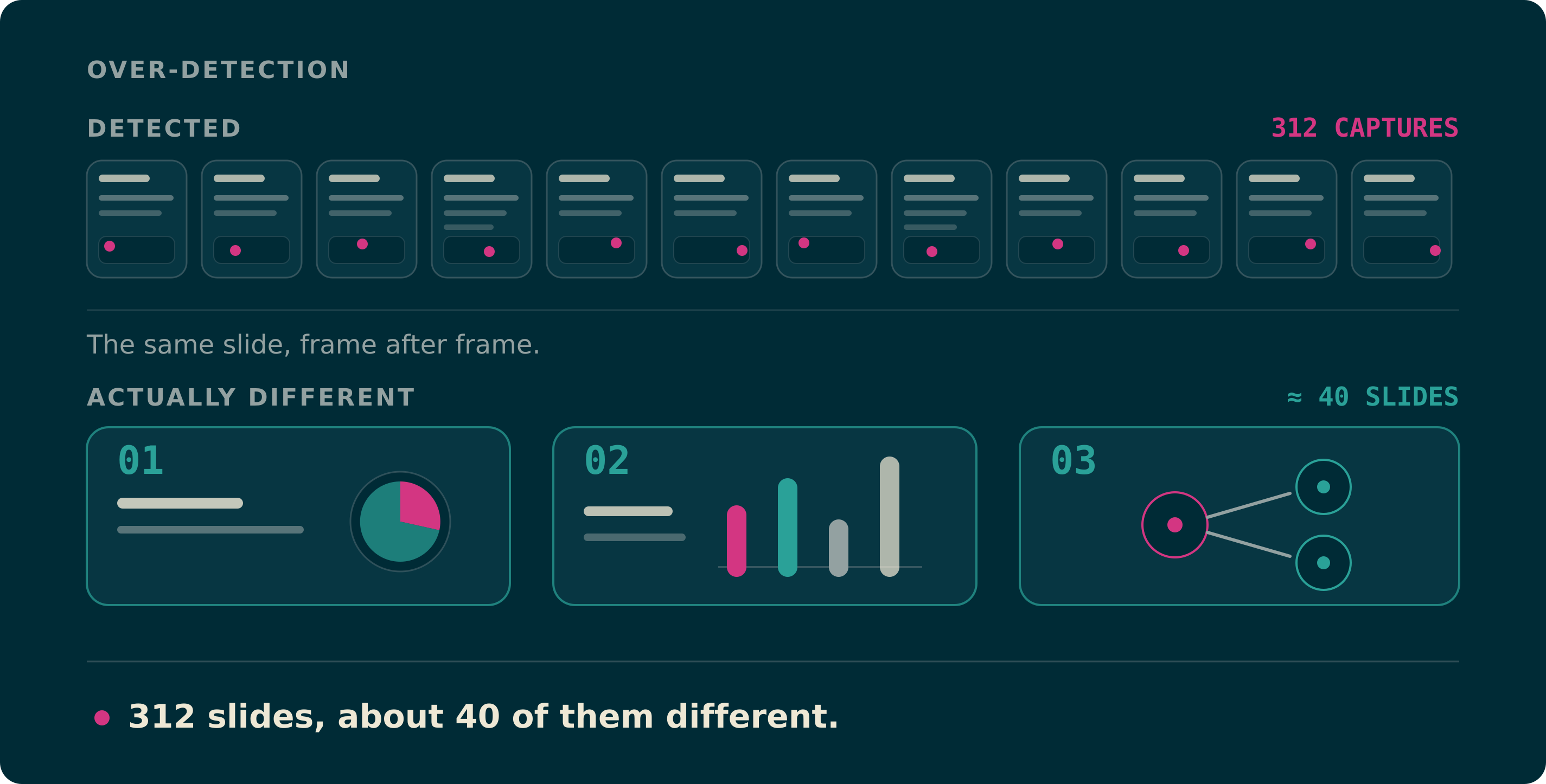
You dropped in a 90-minute lecture, the extraction finished, and the deck has 312 slides. Scrolling through it, maybe 40 are actually different. The rest are the same slide with one more bullet revealed, or the same slide with the presenter’s cursor two centimetres to the left.
This is the opposite failure from a converter that misses slides, and it is far more common. Nothing is broken: the detector is doing exactly what it was told, which is to keep a frame every time the picture changes enough. The problem is that a recording changes for a lot of reasons that have nothing to do with a new slide.
Most of it comes down to five things. One setting fixes the majority of them, and the rest is a short cleanup if you delete in the right order.
On this page
Why one slide becomes twelve frames
Frame-difference detection compares each sampled frame with the last one it kept. If enough pixels changed, it calls that a new slide. These five things change pixels without changing the slide.
Builds and animated bullets
A slide that reveals one bullet at a time is, visually, five different slides. The detector is right and you still do not want five copies. This is the single biggest source of duplicates in taught lectures and sales decks.
Cursors, laser pointers and ink
A pointer circling a diagram, or a presenter annotating in real time, changes a small but high-contrast region repeatedly. On a low-resolution recording that region can be a large enough share of the frame to trip the threshold on every pass.
A webcam overlay in the corner
Picture-in-picture of the speaker never stops moving. If the overlay is large relative to the frame, which is common on Zoom, Teams and Loom exports, it alone can generate a new "slide" every few seconds, indefinitely.
Transitions, fades and scrolling
A one-second dissolve between two slides is a continuum of frames that are all different from each other. Sample it three times and you get three blurry half-slides between the two real ones. The same goes for a page being scrolled rather than advanced.
Embedded video, GIFs and live demos
Every frame of an embedded clip differs from the last. A 40-second demo inside a slide can produce more captures than the entire rest of the deck. Live coding is the same problem in slower motion: the editor genuinely does change on every line.
How much change, and how long it holds
Two numbers decide how many slides you get. The first is how much of the frame has to change before a candidate is recorded. The second, which most tools do not expose at all, is how long the new picture has to stay put before it counts as a slide.
The hold time is what separates a real slide change from a transition or a moving overlay. A slide sits still for several seconds, while a fade is never still even for one frame. When we built the extraction pipeline behind our own reference decks, the default threshold of roughly 2% pixel change with no hold requirement turned a single live-coding lecture into 1,331 candidate frames. Requiring more than 7% change that then held steady for three seconds brought the same lecture down to a couple of dozen real slides, with nothing important lost.
In Video2Any this pair is exposed as the Density control (Sparse, Default, Dense) next to the sampling mode in the editor. Sparse demands a bigger, steadier change; Dense accepts smaller ones. Change it and press Resample: the video is still in the tab, so re-running takes seconds and does not re-upload anything.
Which setting for which recording
Start here rather than at Default. These are the settings that need the fewest manual deletions for each kind of source.
| Recording | Start with | Why |
|---|---|---|
| Slide-only screen share, no builds | Default | Clean cuts between static slides. The easy case. |
| Lecture with animated builds | Sparse | Ignores partial reveals; you keep the completed slide. |
| Zoom / Teams / Loom with a webcam overlay | Sparse | The moving overlay stops registering as a change. |
| Whiteboard, live coding, handwriting | Fixed, every 20-30s | Content grows continuously, so time-based sampling beats change detection. |
| Conference talk filmed on a camera | Sparse | Camera shake and audience movement inflate the change ratio. |
| Dense technical deck, few animations | Dense | Real slides can differ by only one line of a formula. |
Cleaning up what is left, in the right order
After resampling you will still have some duplicates. Deleting them in this order goes a lot faster than working top to bottom.
Delete the build-up frames, keep the last one
Where you see four versions of the same slide, the last one has every bullet. Keep it, delete the three before it. Never keep the first, because it is the emptiest version of that slide.
Delete anything blurry
A blurred or half-faded frame is always a transition artefact, never a slide. Blur is the fastest visual filter for skimming a long timeline.
Delete runs
Duplicates come in consecutive blocks, not scattered singles. Select the run, remove it in one go, and move to the next block instead of judging each thumbnail on its own.
Recapture instead of resampling for one-off misses
If cutting the density lost one slide you wanted, scrub to it and capture that frame by hand. That is faster than re-running the whole extraction to recover a single slide.
What cropping changes, and what it does not
Cropping in the editor (Crop, then Apply to all slides) removes the webcam thumbnail, the meeting chrome and the black bars from the exported images. It makes the deck look like slides instead of screenshots, and it is worth doing on any recording made in a meeting app.
What it does not do is change how many slides you got: cropping runs on the frames after detection, so the overlay has already done its damage. To stop the overlay generating captures in the first place, use Sparse density, or crop the video itself in a video editor before converting.
When 300 slides is the correct answer
Not every long deck is over-detection. A maths lecture where the board fills line by line genuinely has hundreds of distinct states, and so does a software demo. If your reason for converting is to be able to find and quote a specific moment, dense output is what you want. Export to PDF, which handles hundreds of pages far more gracefully than PowerPoint does.
Use the deck size as the signal. If the slides are mostly identical, you have an over-detection problem and should resample. If they are mostly different but numerous, the recording is just dense, so change the export format rather than the settings.
Where our own default sits
Video2Any ships a default that errs dense, and that is a deliberate trade: a slide you did not want is one click to delete, while a slide that was never captured means re-running the whole video, or not noticing it is gone at all. Given the choice we would rather hand you too much than quietly lose something.
That choice has a price. Our own usage data says people delete a meaningful number of slides by hand on long recordings, which is what the price looks like in practice, and the reason the Density control sits directly next to the timeline instead of behind an advanced-settings panel. Why video-to-PowerPoint tools miss slides (and how to test the output) covers the failure in the other direction, stage by stage.
FAQ
- Can it merge duplicate slides automatically?
- Near-duplicate suppression is part of detection, which is what the Density control tunes. There is no separate merge pass afterwards, because "same slide, one more bullet" and "different slide" cannot be told apart reliably enough to delete a frame without asking you, and deleting the wrong one is unrecoverable.
- Do I have to re-upload the video to change the density?
- No. Local files are read inside the browser tab and never uploaded at all, so changing Density and pressing Resample re-runs the analysis on the copy already in the tab. Re-running a two-hour recording costs you the analysis time, not a second transfer.
- Why did Sparse also drop slides I wanted?
- Sparse raises the bar for what counts as a change, so two slides that differ only slightly (one line of a table, one changed number) can merge into one. That is the trade in the other direction. Use Default or Dense for decks like that and clean up by hand, or capture the missing frames manually.
- What is the fastest setting for a meeting recording with a webcam overlay?
- Sparse density, then Crop and Apply to all slides to cut the overlay and the meeting chrome out of the exported frames. Those two steps handle the overwhelming majority of Zoom, Teams, Meet and Loom recordings.
- Is a 300-slide .pptx even usable?
- PowerPoint will open it, but it will be a large file and slow to scroll. If the slides really are all distinct, export PDF instead; if they are not, resample at a lower density first.
The short version
Getting too many slides is a threshold problem, and the threshold is a control in the editor. Set Density to Sparse for anything with builds or a webcam overlay, press Resample, then delete blurry frames and keep the last frame of each build. A 90-minute lecture should land somewhere between 30 and 60 slides. If it lands at 300, change the setting before you blame the recording.