Convert a whole course in one run
A course is not one recording. It is twelve, sitting in a folder named after the course code, each of them an hour long, each with the slides you actually wanted somewhere inside. Converting them one at a time means twelve trips through the file picker, twelve waits, and twelve exported files you then have to rename.
Batch mode takes the folder instead. It reads every video in it, runs the same extraction the editor runs, and gives back one deck per lecture — in the order the lectures are numbered, decoded on your own machine, with nothing uploaded. Here is how to use it, and what it will not do.
On this page
Before you start
- An account. A single file never needs one; a folder does, because a run keeps a shelf of finished decks rather than producing a single file.
- The recordings on this computer, in one folder. A folder per week or per section is fine — they are read as one list.
- A browser tab you can leave open. Everything is decoded here, so this tab is the machine doing the work.
1 Open Batch
It is at /app/batch, or Batch in the app sidebar. The page is empty until you hand it a folder, and there is nothing to configure first — a run uses the same settings the editor uses, and anything you want to change you change afterwards, per lecture.
2 Pick the folder, not the files
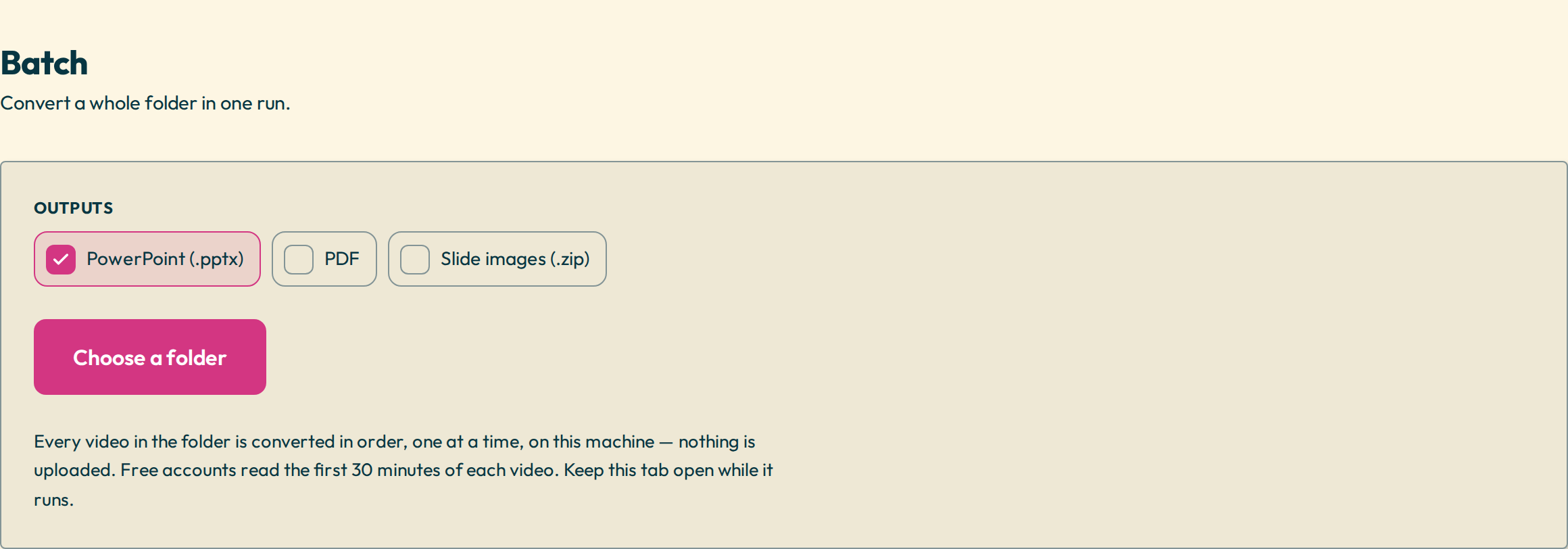
The picker asks for a folder. Anything in it that is not a video is ignored — a syllabus PDF, a stray thumbnail file — and anything that might be one is queued, including formats a browser may refuse to open, so an .avi is reported as unreadable instead of quietly vanishing.
Then it measures how long each recording is, before any of them start. That is the only moment a free account is asked about length: one question about the folder, rather than one per lecture halfway through.
3 Let it run
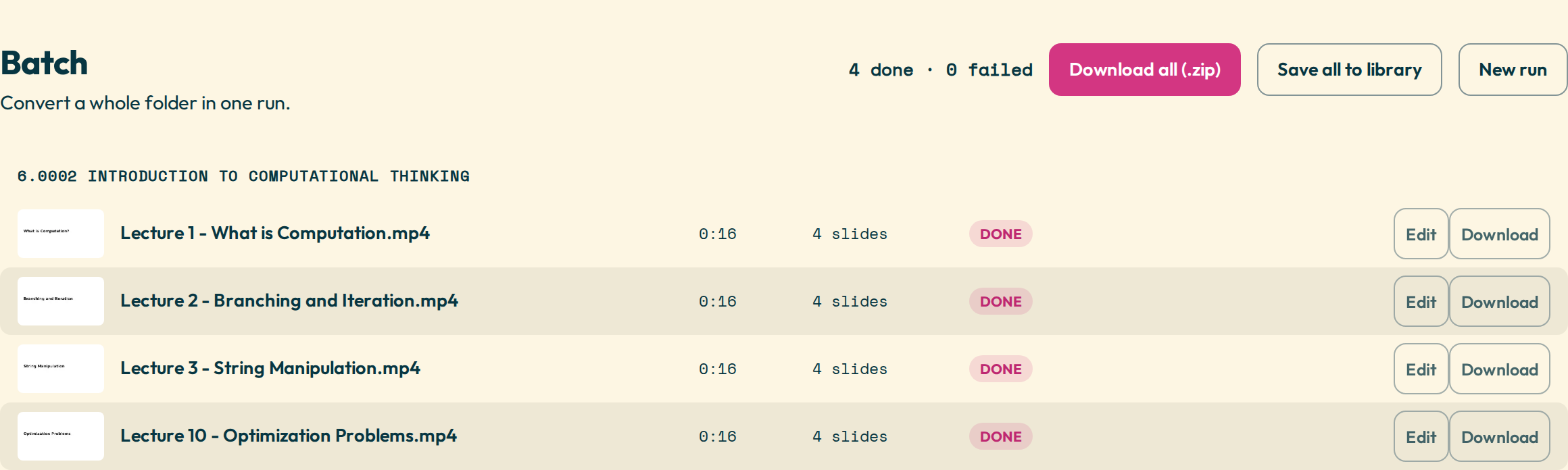
One recording at a time, with each finished lecture appearing as a row with its own thumbnail, duration and slide count. You can open any finished one in the editor, crop a slide, delete another, and come back — the run carries on while you do, because the queue does not live in the page you were looking at.
What does end it is a reload. The browser hands a page the files themselves, not a lasting way back to the folder, so refreshing keeps every deck already finished and forgets the rest of the queue.
4 Take it all out
Export all (.zip) gives you one archive with a folder per lecture, each named after the recording it came from. The decks also stay in this browser until you start another run, so you can come back, edit one and export it again.
The order matters more than it sounds
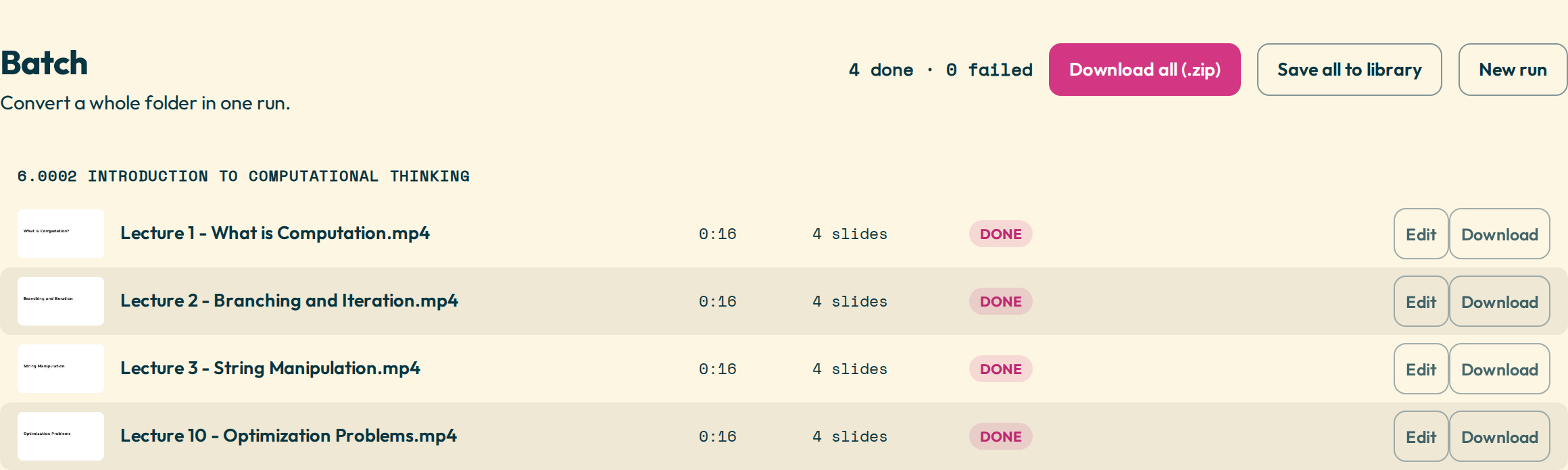
Lecture 10 sorts before Lecture 2 in every file manager you have ever used, and a queue that runs in that order hands back a course in the wrong sequence. So a run does not compare names as plain text. Put your own file names in and see what it will do with them:
What it will not do
- It does not survive a reload. Finished decks stay; the queue does not.
- It reads one level of folders. A course with sections works; a folder of folders of folders is flattened into a single list.
- A free account converts anything under 30 minutes in full and reads the first 30 minutes of a recording longer than that. The question is asked once, before the run starts, and never in the middle of it.
- It does not run without you. This tab is doing the decoding, so a laptop that goes to sleep pauses the course.
Questions
Do the videos get uploaded?
No. Every frame is decoded in this tab, on your machine. A folder of recordings never leaves the computer it is on — which is also why the speed depends on your laptop rather than on a queue somewhere else.
How many files can it take?
There is no fixed limit. The real one is time: this is genuine decoding, and a twelve-hour course takes considerably longer than a twelve-minute one.
Can I close the tab and come back?
Not mid-run. Decks that have finished are kept, but the queue stops when the page does.
What happens to a file the browser cannot open?
It is queued, attempted, and marked unsupported with a reason — usually a codec no browser decodes, such as HEVC or ProRes. Converting that file to H.264 MP4 and running the folder again is the fix.
Does each lecture keep its own name?
Yes. Every output folder is named after the recording it came from, so a zip of a course arrives as a course rather than as forty numbered files.