How to Turn a Screen Recording into PowerPoint Slides
Screen recordings pile up: a colleague's walkthrough of a new process, a presentation someone recorded at their desk, a tutorial you made yourself months ago. When what you need is the pages that were on screen, scrubbing through the video to take screenshots is slow and easy to get wrong.
Video2Any reads the recording and keeps a picture each time the screen changes and then holds still. You review those pages and export them as a PowerPoint deck. How clean the result is depends mostly on what kind of screen recording you have, so start there.
On this page
What kind of screen recording is it?
- A captured slideshow. Someone presented a deck full screen and recorded it. This is the easy case: each slide holds still while it is being talked about, and each becomes one page.
- A software walkthrough. Menus, settings screens, a terminal, a browser. Pages come from the moments the screen settles. A screen that is constantly scrolled or typed into gives fewer clean pages, and some of them will be near-copies.
- Slides with a live demo in the middle. Common in internal talks and conference recordings. The slides come out cleanly; the demo is where most of the cleanup happens.
If you have the original deck, use it instead. It has every slide, including ones that were skipped, and its text is editable.
Step 1: open the file
Video2Any works on a video file in your browser, not on a link. The screen recording to PowerPoint page takes MP4, WebM, MOV or any video your browser can play, and the file stays in the tab.
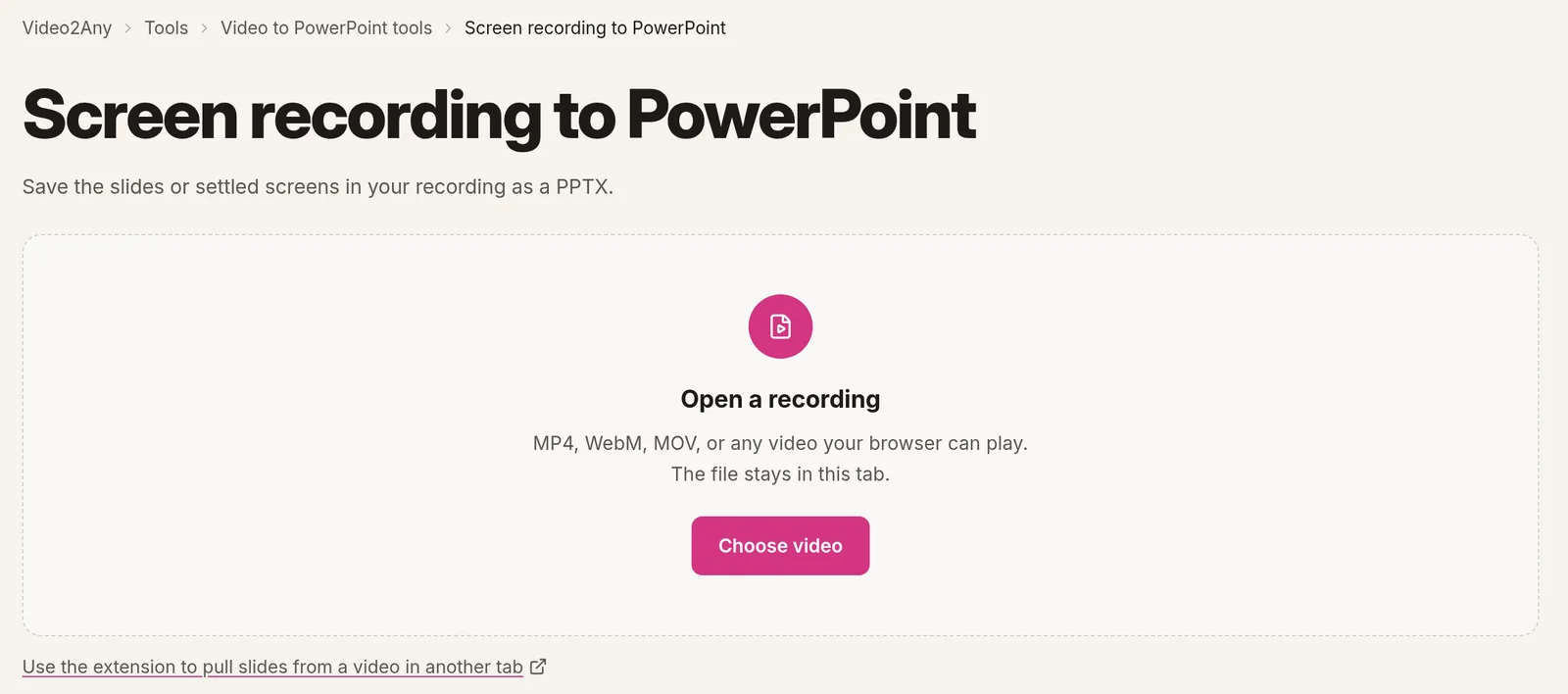
Most recorders already save one of those formats. The built-in recorder on a Mac saves MOV, and the Windows Snipping Tool saves MP4. Browser-based recorders often save WebM, which PowerPoint itself is fussy about; WebM in PowerPoint explains why, but you do not need to convert anything for Video2Any.
If the recording only plays inside a website, such as a training portal, the Chrome extension can read the pages from the tab while it plays, where you are allowed to keep notes from it.
If the recording does not exist yet, for example a presentation you are about to watch, you can skip the file. Record your screen on the home page opens the app with Start recording: share the window or tab that will show the slides, and each new slide is captured as it appears. Stopping the recording opens the editor with those pages. If your browser cannot record the screen, use your device's recorder and open the file afterwards.
Slide extraction runs in your browser and the video is not uploaded. The first 30 minutes of each recording are free without an account, and a free account adds one full-length recording.
Step 2: clean up what is not a slide
Screen recordings have a few habits that lectures do not. Each has a control in the editor.
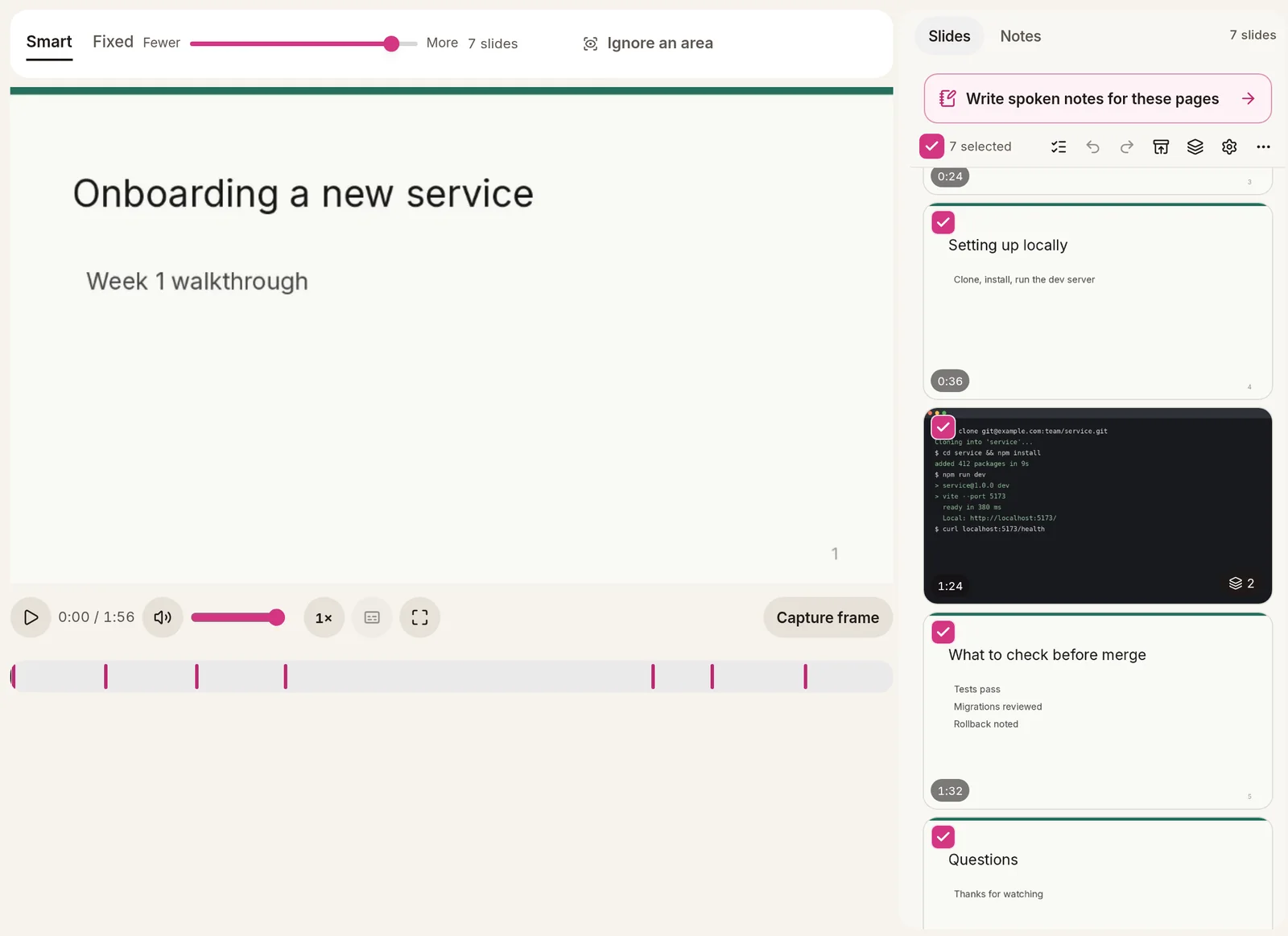
- Browser bars, taskbars and docks. A full-screen capture often includes the browser's tabs and address bar or the system taskbar. Use Crop on one page and choose Apply to all slides to trim the same edge from every page.
- A corner that keeps changing. A webcam bubble, a notification, a clock or a chat panel can make the same slide look different from second to second. Ignore an area lets you draw up to four boxes over spots like that, and detection reads the recording again without looking there.
- Typing and step-by-step reveals. A terminal filling up line by line looks like a bullet build: the same screen, growing. The editor folds frames like that into one card and shows the most complete one; the number on the card opens the folded frames, and Split them all separates every group if you want each step.
- Live demos inside a deck. When a recording is mostly slides, the editor usually sets aside runs of frames that look like a terminal, an editor or a browser shown live, as their own Screen recording group under Ignored. Nothing is deleted. Open Ignored to put back the frames you want, for example the one that shows the command that mattered. When a recording is mostly screen content, such as a tutorial, the screen is the deck, and those frames stay in. The same check also sets aside camera views and blank screens; the camera-frames post explains how it works.
- Too many or too few pages. Move the Pages slider towards Fewer or More. If a menu flashed open for a second and you need it, play the recording to that point and use Capture frame (or press C) to add the page yourself. For a recording where nothing ever holds still, Fixed detection takes a frame on a timer instead.
If you still have far more pages than you want, cutting a 300-slide export down to 40 goes through the rest. Then step through the deck once and remove anything you do not need.
Step 3: export
Export to PowerPoint, PDF, Word, Markdown with images, or a ZIP of page images. You can reorder, crop and annotate pages first. Each page is a picture of what was on screen, so it looks exactly as it did in the recording, but the text is not rebuilt as editable objects. What "editable PPTX" actually means explains the difference. On the free tier, PPTX and PDF exports end with a short Video2Any credit page; the pricing page has the current plans.
PowerPoint makes sense if you will present from the pages or drop them into your own deck. A PDF is easier to send or print. Which export format to pick covers the others.
When the narration matters
In a walkthrough, the screen shows where to click and the voice explains why. Two optional extras add the spoken part:
- Spoken notes. The screen recording to notes page writes a note under each page from what was said while it was on screen, and exports Markdown, Word or PDF.
- A transcript. The full transcript in spoken order, as TXT with timestamps or as SRT.
Both need you to sign in and have a few free runs per account before they are charged; pricing has the details. Starting them sends the audio for processing, and notes written against the pages also send those page images. A silent screencast gives you pages but little or no notes.
When this is not the right tool
- You have the source deck or the app. Use the original slides, or take fresh screenshots of the software.
- You need to edit the text. The pages are images. Rebuild the slides that need changes.
- The recording is mostly motion. Scrolling, dragging and video playback do not hold still, so they produce few readable pages. Spoken notes or a transcript may be more useful.
- It is not yours to reuse. Video2Any works on a recording you are allowed to use. It does not grant any rights to someone else's material.