WebM in PowerPoint: why it won't play, and how to fix it
On this page
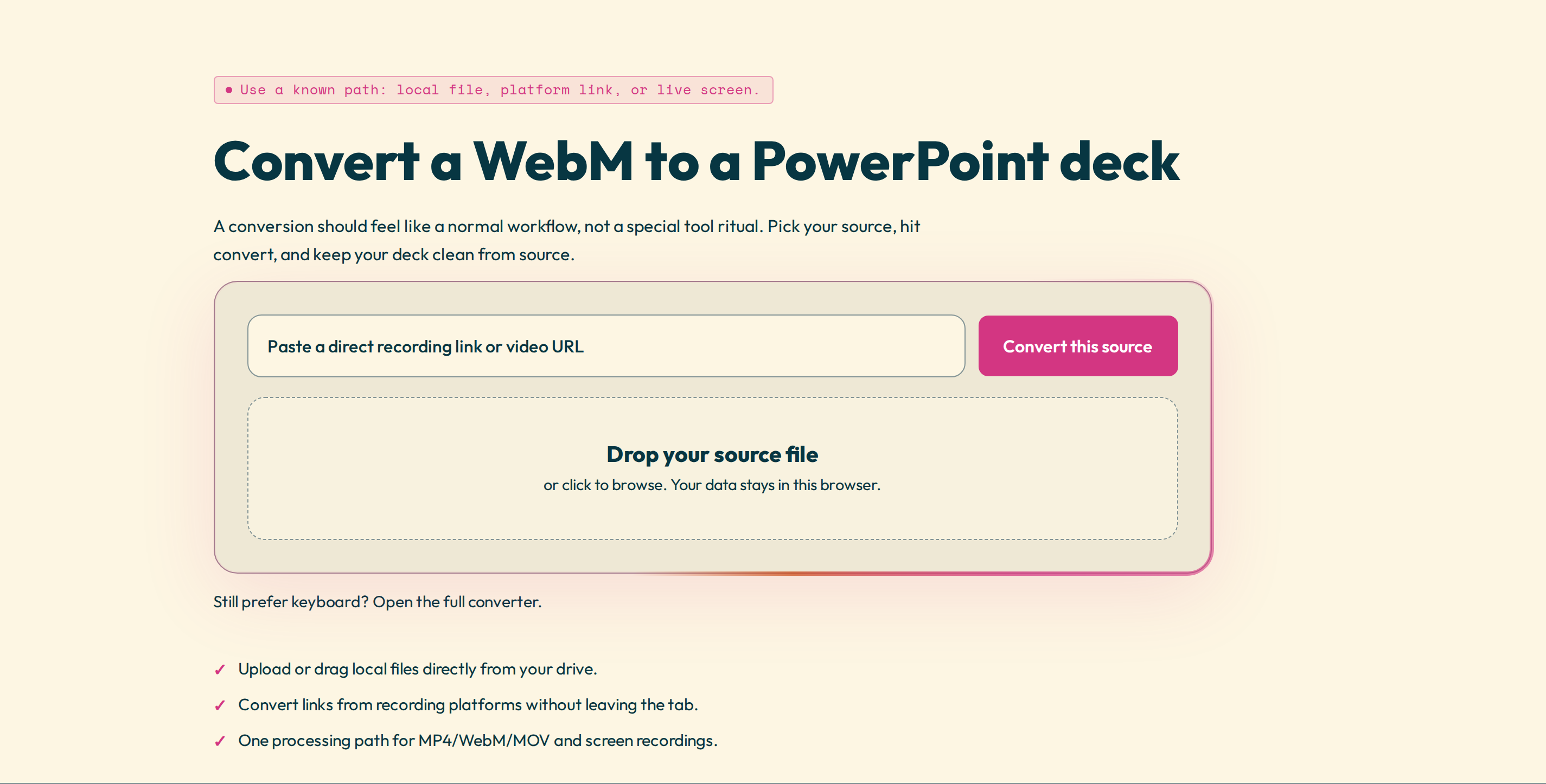
You tried to drop a .webm file into a slide with Insert → Video, and PowerPoint either refused it or showed a black box that will not play. You are not doing anything wrong: PowerPoint simply does not support the WebM format.
Why PowerPoint will not play WebM
PowerPoint plays MP4 (H.264 video with AAC audio), MOV, and M4V; older versions also handle WMV and AVI. It has never supported WebM or the VP8, VP9, and AV1 codecs inside it. WebM is a web and browser format: you get it from screen recorders and tools like OBS. That is exactly why it lands on your desktop and then stalls the moment you drop it into a slide.
First decide what you actually want
There are two very different reasons to put a WebM in a deck, and each has its own fix:
- You want the video to play inside a slide, as a moving clip.
- You want the content of the WebM — the slides, screens, or text it shows — as PowerPoint slides.
Option A: make the WebM play in a slide
Convert the WebM to MP4 (H.264 video, AAC audio) with any video converter, then in PowerPoint choose Insert → Video → This Device and pick the MP4. Set how it plays — automatically or on click, loop, full screen — from the Playback tab. Keep the MP4 beside your .pptx or embed it, and stick to H.264 and AAC so the file opens on both Windows and Mac.
Option B: turn the WebM into slides
If your WebM is a screen recording, lecture, webinar, or product demo, you probably do not want a video playing in a box — you want the actual slides back, so you can present them, print them, or add your own notes. Video2Any's WebM to PowerPoint tool scans the file frame by frame, catches every slide and scene change, and rebuilds them as an .pptx — right in your browser. The WebM is decoded on your own machine, so nothing is uploaded.
Open the tool, choose your .webm, review the detected slides on the timeline (keep the good ones, drop duplicates), then export to PowerPoint, PDF, or images.
Which one should you pick?
- Want the moving clip to play during your talk → Option A: convert to MP4 and embed it.
- Want the pages the video shows, to present, print, or annotate → Option B: turn it into slides.
Working from an MP4 instead? See how to convert MP4 to PPT.
Turn a WebM into slides — free, and the file never leaves your browser.