Spoken Notes vs a Transcript: What You Get from a Lecture Recording
You have a lecture recording, and you want something written down. Two requests come up again and again: notes, and a transcript. They sound interchangeable. They are not.
Spoken notes are a handout. The write-up sits under each slide, so you can revise page by page. A transcript is the wording in the order it was said, useful when you need to search, quote, or caption the recording. One is for studying. The other is for the exact sentence.
In Video2Any you do not start two different jobs to get both. You sign in and run Spoken notes — the same action the editor lists as Notes — and the same run writes the chaptered handout and the word-for-word transcript. Slide extraction, if you want the original pages kept, still happens in the browser. The video file is not uploaded. Starting notes uploads the audio and, when the job already has pages, those page images.
On this page
What spoken notes are
The notes are written from what was said, and from the page images when the job has them. Each page in the handout keeps three things: a picture of the slide as it appeared in the video, the time it appeared, and the notes for that stretch of the talk. A short summary sits at the top. You read it in the Notes tab, page by page, and you can fix a garbled name or a slipped term before you export.
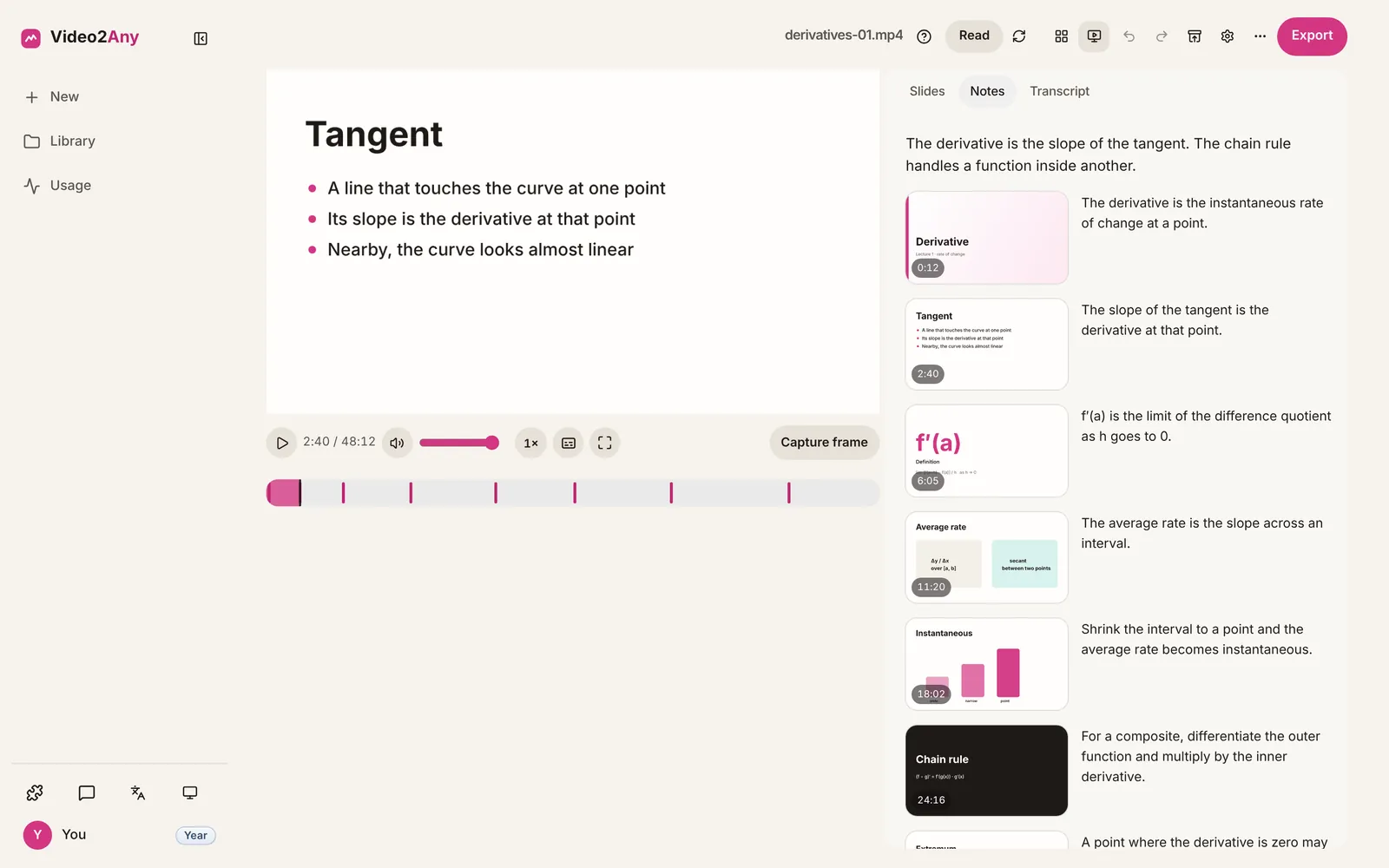
This is the file you study from. It is also the file you send a classmate who missed the lecture and needs the pages, not a wall of speech.
What you can export from the notes, as listed on Lecture recording to study notes:
- Markdown — a
.mdfile, or a.zipwithnotes.mdand animages/folder. - Word — a
.docxwith the page images embedded. - PDF — a continuous layout, ready to print.
The slide pictures in those files are pictures of the original pages, not a rewrite, and the text on the slides is not editable. What "editable PPTX" actually means is the longer explanation of that limit.
A recording where nobody talks produces a thin handout. The pages can still be extracted; the notes will have little to say about them.
What the transcript is
The transcript is the spoken text as recognized, in the order it was spoken. It is not a summary. Speaker names are not labelled, and if two people talk over each other the lines may run together. Page images play no part in it, and the text on the slides is not merged in.
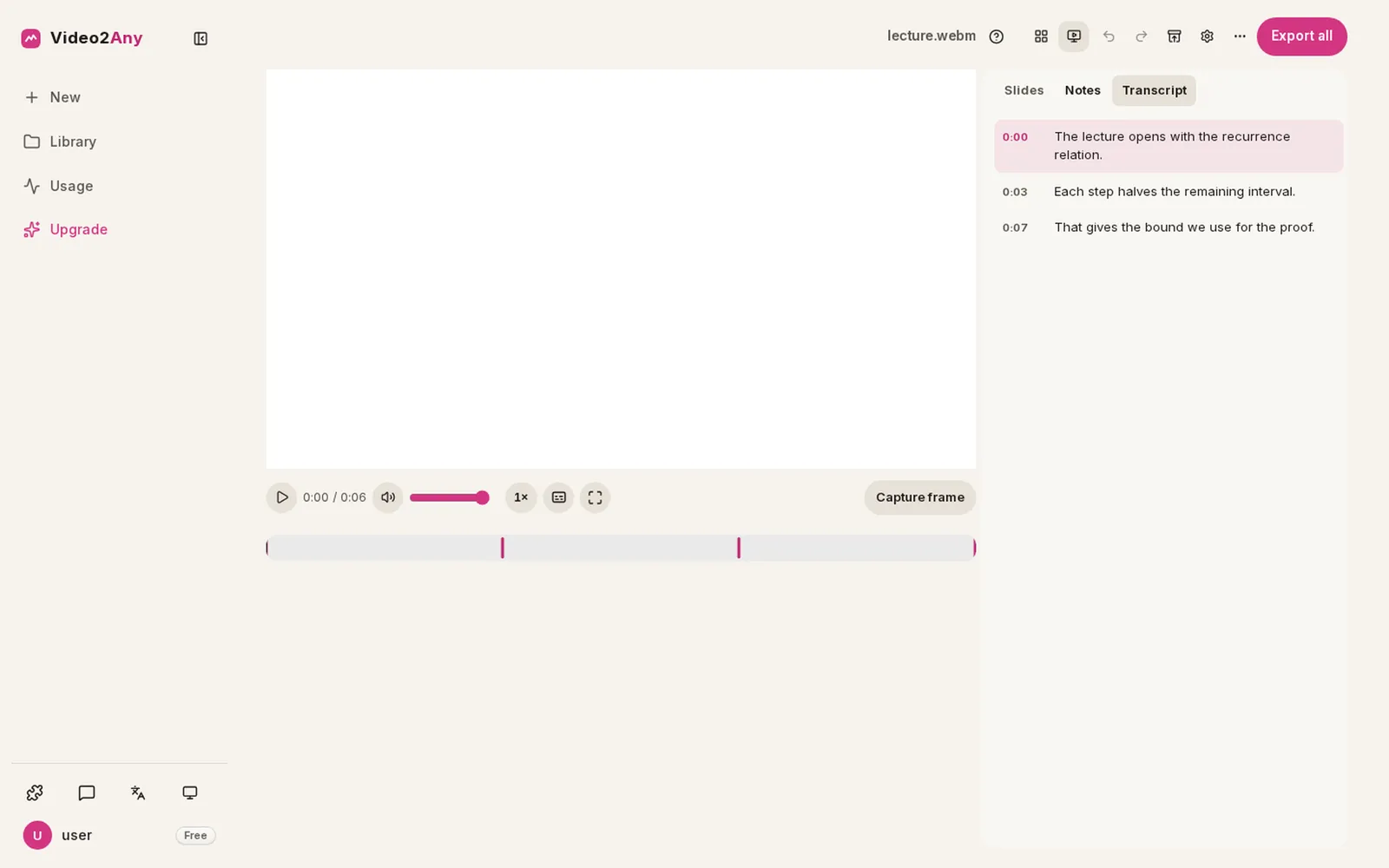
After the run, the transcript exports as:
- TXT — paragraphs of spoken text, with optional
[mm:ss]marks. - SRT — one timed cue per segment, for players and editors that read SubRip.
Those exports are included in the run. The video to text page is the short version of this path; the transcript landing page covers the same wording and the same files.
When the notes are what you want
- Revising a lecture. You walk through the pages in order, read the write-up under each slide, and only replay the stretch you did not follow.
- A handout you can print or send. A PDF or a Word file with the page images alongside the notes is the thing to file or to pass to a classmate.
- Catching the point of each slide. The notes compress what was said in that stretch. You get the claim, not every filler sentence.
- Study without the recording open. Once the handout is written, you can leave the video alone.
If what you actually wanted was a comparison of note-taking tools, and whether they keep the slides, that is a different question, answered in Lecture note takers that keep the slides.
When the transcript is what you want
- Searching for a phrase. A TXT file you can search is the fastest way to find the moment the lecturer defined a term, or gave the date of the exam.
- Quoting a sentence. Notes paraphrase. If you need the wording, you want the transcript, and you may still want to fix a recognized name before you quote it.
- Captions. SRT is the file a player can load as subtitles. Notes cannot do that job.
- Checking something the notes smoothed over. If a formula, a name or a number looks off in the handout, the transcript is the place to read the stretch word for word.
The transcript will not, by itself, give you the slides. If the lecturer pointed at a diagram and said "this one", only the page image makes that line useful. That is the usual reason to run notes on a recording that also has slides, rather than treating the transcript as the whole output.
You do not have to choose
One Spoken notes run writes both. When it finishes, the Notes tab and the Transcript tab are sitting next to each other. You can export the handout and the TXT or SRT from the same job. If you also want a deck you can reorder, the export sheet still offers PowerPoint and PDF of the pages; PDF or PPTX for extracted lecture slides is the decision between those two, and Deck, notes and transcript puts the pack in one download.
Spoken notes need an account. The pricing page is the source for the current allowance: free trials first, then minutes for spoken notes, with the transcript and the TXT/SRT export included. This post does not freeze those numbers.
A few limits that do not change with the file you export: there is no paste-a-link box and no downloader, so a lecture that only plays in a university portal or on YouTube goes through a local file you already have, or through the Chrome or Edge extension on the open tab. The run does not dub the video, and it does not translate it. Extraction of the pages stays on the device; only the audio, and the page images when they exist, go up for the write-up.