PDF or PPTX for Lecture Slides Extracted from a Video
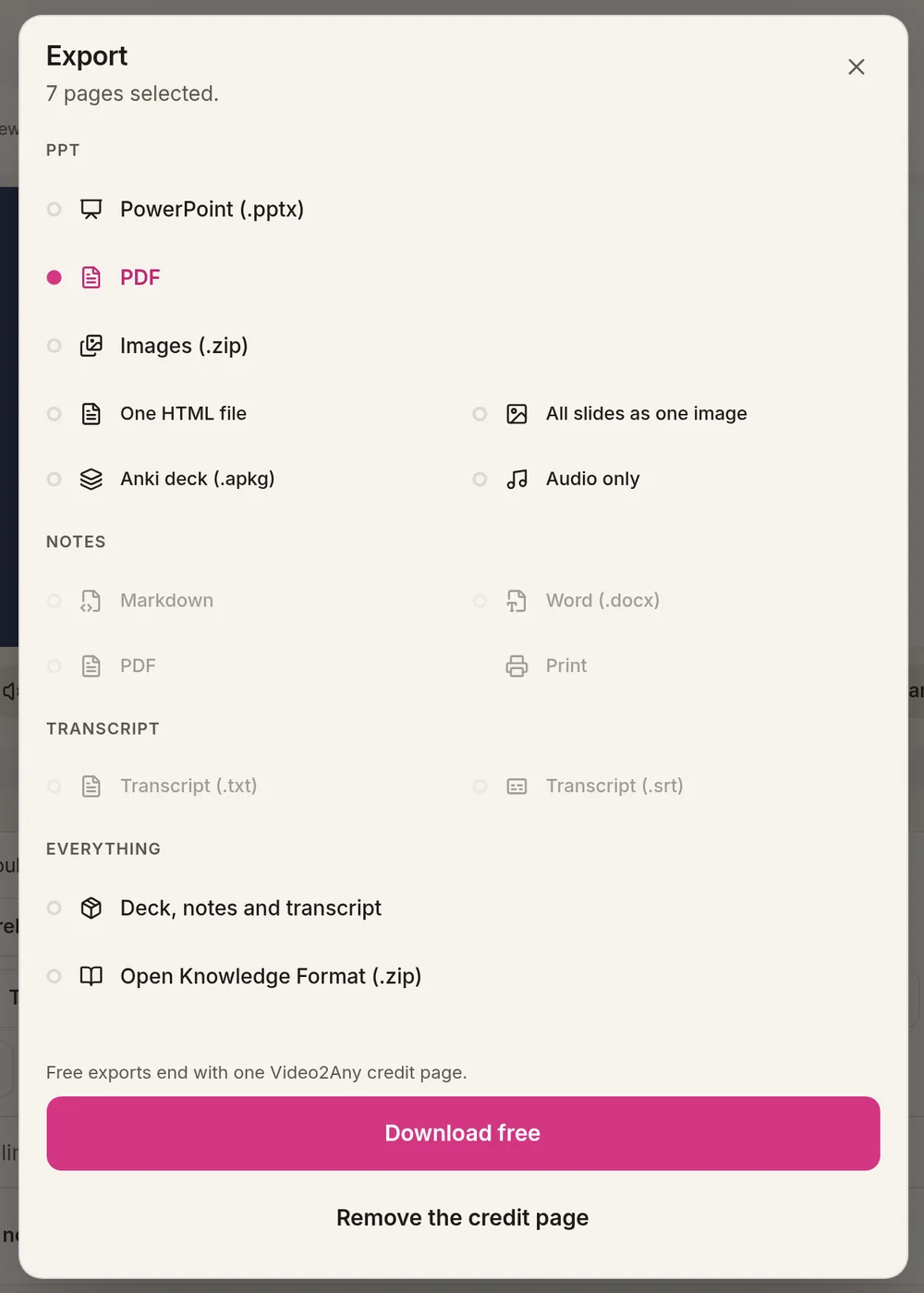
You have pulled the slides out of a lecture recording, cleaned up the repeats, and pressed Export. The first two choices under PPT are PowerPoint (.pptx) and PDF. Which one do you want?
The short answer: they hold the same pictures, so the choice is about what you will do with the file next. PDF is for reading, printing and writing on. PPTX is for changing the deck itself.
On this page
What is actually inside each file
We made a 96-second test lecture with seven slides, opened it in the editor on video2any.com, kept the seven pages it found, and exported both files on the free tier.
- PowerPoint: seven slides plus a closing Video2Any credit slide, on a widescreen 16:9 page. Each slide is one picture of the page as it appeared in the video. There are no text boxes on the slides.
- PDF: seven pages plus the same credit page, on landscape 16:9 pages. Each page is one picture; there is no text layer, so a PDF reader finds no words to select or search except on the credit page.
- The pictures were the same. In both files, every slide was the same 1600 × 900 image. Neither format is sharper than the other.
Two things follow from this. Picking PowerPoint does not make the slide text editable, and picking PDF does not lose any detail. What "editable PPTX" actually means explains why recovered slides are pictures.
The page shape follows the recording. A widescreen lecture gives 16:9 pages in both files; a portrait phone recording gives portrait pages.
On the free tier, both PPTX and PDF end with one Video2Any credit page. Remove the credit page in the export sheet opens the plans that drop it; the pricing page has the same list.
Choose PDF when you will read, print or annotate
- Revising on a tablet. A PDF opens in any reader, and most tablet readers let you draw on a page or add a note beside it. The annotations stay in the PDF.
- Printing. One slide per page, fitted to the page. The pages are 16:9, so on A4 or Letter paper the printer scales each slide down and leaves a margin. Print two or four to a sheet in the print dialog if you want a compact handout.
- Sending to someone who will not open PowerPoint. A classmate on a phone, a reading list, a course archive. A PDF looks the same everywhere.
- Keeping a fixed copy. A PDF of a term's lectures is easy to file and hard to break by accident.
What the slides PDF does not have: notes. It is only the pages. If you want what was said written under each page, that is a different file, the notes PDF from Spoken notes, which sits in the Notes row of the same export sheet.
Choose PPTX when you will change the deck
- Reordering, deleting or merging. Drag slides around, drop the ones you do not need, or copy a few into your own presentation. You can do some of this in the Video2Any editor before export too, but PowerPoint is where you combine decks.
- Adding your own words. Put a text box, an arrow or a highlight on top of a slide picture. The original text is still part of the picture, so you write next to it or over it, not in it.
- Speaker notes. If you have run Spoken notes on the recording, the PPTX carries the note for each page in its speaker notes, with the summary at the start of slide one. When a transcript exists, the PPTX row also offers Narration per page, which puts the transcript for each page's time range in its speaker notes as well. The PDF carries neither.
- Presenting. If you are walking a study group through the lecture, a deck in presenter view is easier than scrolling a PDF.
PowerPoint, Keynote and Google Slides all open a .pptx, so you do not need a separate export for each.
Take both when you are not sure
Exporting a second format does not run the extraction again. The pages are already in the tab, and each export only writes them to a file. A common pair is a PDF for revision and a PPTX you keep in case you later want to edit the deck. The page images in both come from the same pages, so the two files always match.
If you also have spoken notes or a transcript, Deck, notes and transcript under Everything puts them in one download with the deck.
Before you export either one
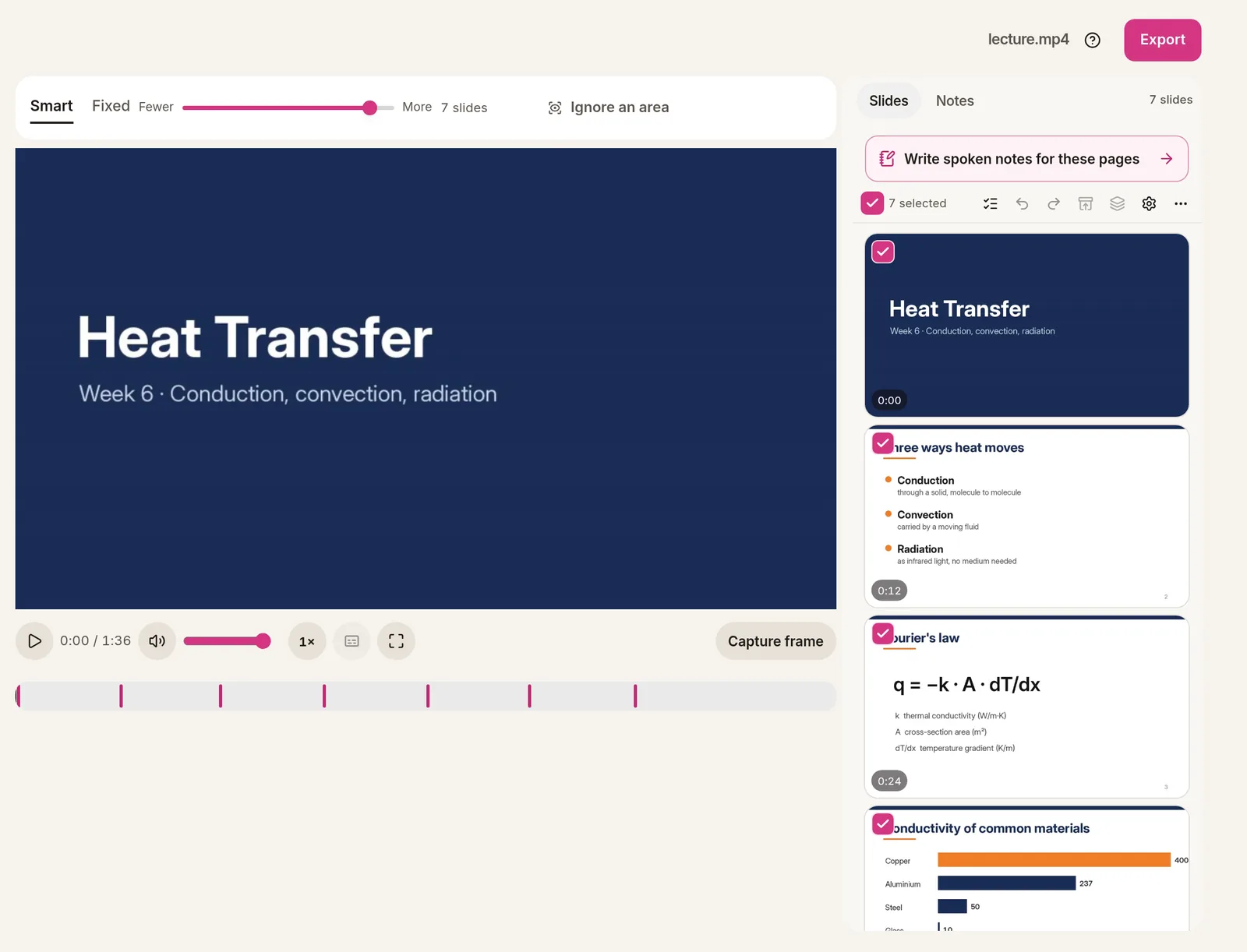
The export writes the pages that are selected, so the cleanup you do first shows up in both files.
- Remove repeats and blank frames. Move to ignored on a card takes it out of the export without deleting it. If the deck has far more pages than the lecture had slides, cutting an export down to size covers what to remove first.
- Add a missed slide. Play to the moment it is on screen and press Capture frame.
- Crop the frame. If the recording has a webcam strip, meeting controls or black bars, Crop one page and apply it to all slides. Both files use the cropped pictures.
Slide extraction runs in the browser tab and the video is not uploaded. The first 30 minutes of each recording are free without an account. You can start from video to PDF or video to PPT; both open the same editor.
When neither file is what you need
- You need to edit the text on the slides. Both files hold pictures. Ask the lecturer for the original deck, or retype the slides you need.
- You need the words, not the pages. A slide PDF is not a transcript. Spoken notes write a note under each page and include the full transcript as TXT or SRT; they need you to sign in, and starting them uploads the audio and the page images.
- You want every format at once. Which export format should you pick? covers the rest of the menu: Word, Markdown, the image ZIP, the one-image sheet and audio.
The short version
| You want to | Take |
|---|---|
| Revise, annotate on a tablet, or print | |
| Send to someone without PowerPoint | |
| Reorder, cut, or reuse slides in your own deck | PPTX |
| Keep spoken notes in the speaker notes | PPTX |
| Edit the original slide text | Neither; ask for the deck |
| Not sure yet | Both; the second export does not re-run extraction |