Phone Video of a Projector: How to Recover the Slides as a Deck
The lecturer will not share the slides, or the talk is not recorded, so you hold up your phone and film the screen. Later you want the slides, not 50 minutes of video to scrub through.
Video2Any can turn that video into a deck: it keeps a picture each time the screen changes and then holds still, and you export those pages as PowerPoint or PDF. A phone pointed at a projector is one of the harder inputs for this, though, because the whole picture moves when your hand does. Here is what to expect and how to get a clean result.
On this page
What we saw in testing
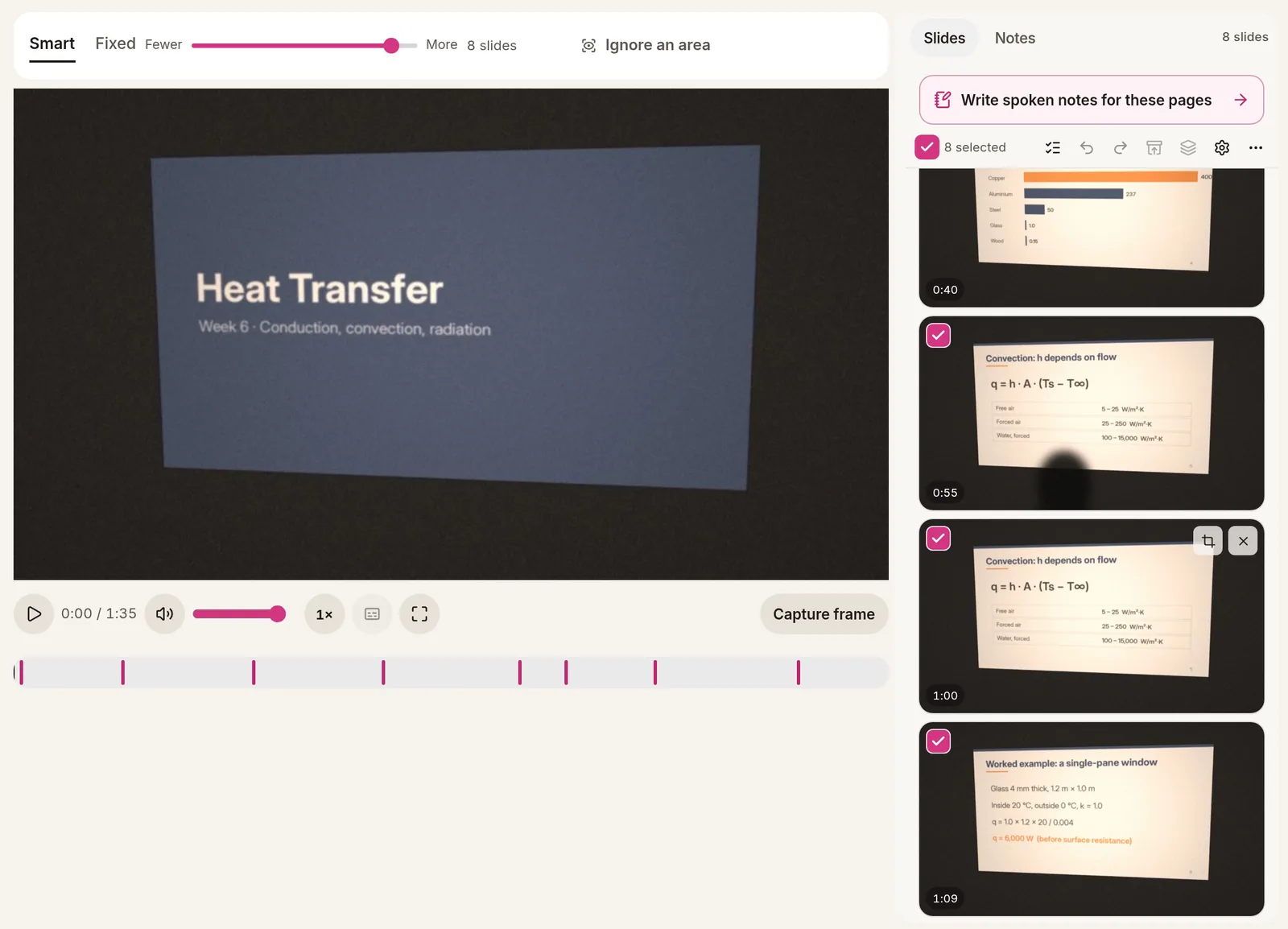
We made a 95-second test clip that imitates a phone recording of a projector: seven lecture slides on a wall screen seen at an angle, a warm colour cast, sensor noise, and a head passing in front of the screen. We rendered it three ways and ran each version through the editor on video2any.com several times with the default settings.
| How the phone was held | Pages | All seven slides? |
|---|---|---|
| Resting still, exposure locked | 8 in both runs | Yes. The extra page was a slide with the head in front; the clean copy came right after it. |
| Resting still, exposure drifting | 17 to 21 across six runs | Yes, with two or three copies of most slides. |
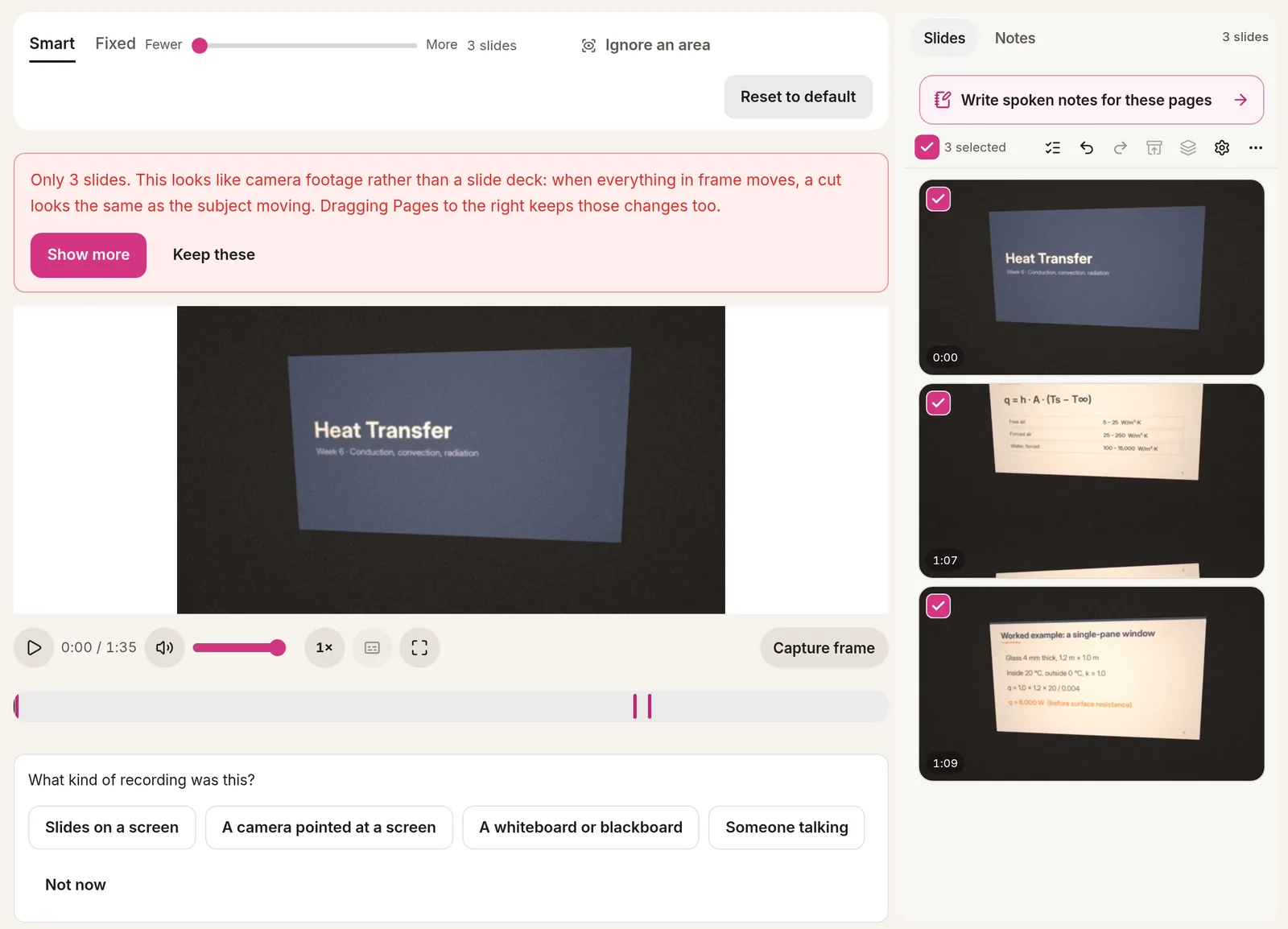
| Handheld | 8 to 15 across four runs | No. At least one slide was missing every time. |
The pattern is simple. A still phone gets every slide. Brightness that keeps changing adds repeats, because the picture never quite looks the same twice. A moving phone makes a slide change look like any other movement, so some slides never register. When we moved the Pages slider to Fewer on the handheld clip, only three pages were left, and the editor said the video looks like camera footage rather than a slide deck.
If you can, set up before the lecture starts
Most of the result is decided when you press record.
- Rest the phone on something. A desk, a bag or a small tripod is far better than your hand. This was the biggest difference in our test.
- Lock focus and exposure. On an iPhone, touch and hold the screen in the Camera app until AE/AF Lock appears. Many Android camera apps have a similar lock. Without it, the phone re-meters every time the slide gets brighter or darker.
- Sit close and central. A screen filmed at a steep angle from the side or the back is smaller and more distorted, and small text may not be readable at all.
- Fill most of the frame with the screen, leaving a margin so a small bump does not cut off an edge.
- Check the video format. iPhones record HEVC by default, which most browsers cannot decode; Video2Any will say so and ask you to convert it to H.264. Setting Settings > Camera > Formats to Most Compatible before you record avoids the extra step.
Open the video
Copy the video from your phone to a computer and open it on the MP4 to PowerPoint or lecture recording to slides page in desktop Chrome or Edge. Slide extraction runs in the browser tab, and the video is not uploaded. The first 30 minutes of each recording are free without an account; the pricing page has the plans for longer ones.
Clean up what came out
- Repeats. Step through the pages and keep the clearest copy of each slide, the one with no head in front and the steadiest picture. Move to ignored on each card removes the rest without deleting them. If there are far more pages than slides, cutting an export down to size covers the rest.
- A missed slide. Play the video to a moment where the slide is up and sharp, then press Capture frame (or C) to add it.
- A handheld clip that missed a lot. Switch from Smart to Fixed, which takes a frame on a timer. On our handheld clip, a frame every 5 seconds gave 19 pages with all seven slides among them, and deleting the in-between frames is quicker than hunting for what is missing.
- The wall, the ceiling and the audience. Use Crop on one page and Apply to all slides to trim the room. The crop is a rectangle: the slide stays at the angle you filmed it. Video2Any does not straighten a keystoned slide.
- Frames set aside. Video2Any sets aside frames that look like a camera view or a blank screen. A projector filmed from the room is sometimes set aside too, as the camera-frames post explains. Open Ignored and put back anything you need.
Export
Export to PowerPoint, PDF, Word, Markdown with images, or a ZIP of page images. Each page is a photo of the screen as your phone saw it, angle, colour cast and all. The text is part of the picture, so you cannot edit or select it, and text that was soft in the video stays soft. What "editable PPTX" actually means explains the difference. On the free tier, PPTX and PDF exports end with a short Video2Any credit page.
If you also want what was said
Two optional extras use the audio. Spoken notes writes a note under each page from what was said while it was on screen, and exports Markdown, Word or PDF. A transcript gives the full talk as TXT with timestamps or SRT. Both need you to sign in, and starting them uploads the audio (and, for notes, the page images). A phone in the middle of a room often picks up echo and nearby voices, and notes can only be as good as what can be heard.
When a phone video will not be enough
- The text is unreadable in the video. Nothing downstream can sharpen it. Ask for the deck or sit closer next time.
- You need to edit the slides. The pages are photos. Rebuild the ones you need, or ask the lecturer for the original file.
- It is mostly a whiteboard. Writing that grows line by line never settles into one picture, so you will get partial pages.
- It is not yours to reuse. Recording a lecture may need permission, and Video2Any does not grant any rights to someone else's slides.