How to save slides from a YouTube video as PDF
You found a lecture with exactly the diagram you need, but the only thing the speaker shared is a YouTube link. A transcript will miss the diagram. An AI-written summary may explain it, but it will not give you the slide you saw.
The job here is narrower: keep the actual slides in a document you can read, annotate, or print without scrubbing through the recording again. Here is how to do that, including when a few manual screenshots are the better choice.
Quick answer: First check the video’s description for the speaker’s original slide deck. If there is no deck, use Video2Any’s browser extension on a YouTube video you can play, review the captured slide images, and export PDF. The extension does not download the video, and the PDF preserves the pages as pictures—not editable or searchable slide text.
Get the extension: Chrome Web Store · Microsoft Edge Add-ons
On this page
First, check whether you need extraction at all
Expand the video description and look for a presentation link. Check the pinned comment and the conference or course page too. Speakers sometimes publish a PDF separately from the recording.
If an original deck is available and you are allowed to use it, take that route. It can have sharper text, links, and pages that never appeared in the video. No screenshot-based tool can recover a page the recording never showed.
If there is no deck, check that the video actually contains readable slides. A talking-head interview will not turn into a useful slide PDF just because you export it. For that job, you probably want a transcript or written notes instead.
Use recordings you have permission to capture for your intended purpose. A public YouTube video is not automatically permission to redistribute the speaker’s slides.
Extract the visible slides with Video2Any
This method is for desktop Chrome or Edge. Start on the YouTube slide extraction page, which links to the browser extension and explains the two supported routes.
There is an important detail before you begin: Video2Any does not accept a pasted YouTube URL. Use its extension on a video already playing in your browser, or open a local video file you own and are allowed to use.
1. Open the video and make the slides readable
Open the recording on youtube.com and play a section where the presentation is visible. Choose the clearest playback quality available. A tiny chart in a low-resolution recording will still be a tiny, soft chart in the PDF.
Check the layout, not just the resolution label. If a presenter camera covers a formula, extraction cannot reveal what is behind it. If the recording is mostly a camera pointed at a projector, expect the same perspective and lighting problems in the captured pages.
2. Start the browser extension
Install the extension through the links on Video2Any’s extraction page. With the YouTube video open, click the extension icon and start extraction while slides are on screen.
The slide capture reads still frames from the video playing in that tab. For this slide export, it does not download the video file or unlock recordings you cannot watch. The frames pass to the Video2Any editor for slide detection and review.
Keep the YouTube tab open until capture finishes. You can switch to another tab, but closing the source removes the player the extension needs to read.
If you already have a permitted local copy of the recording, skip the extension. Open that file in the video-to-PDF tool; local-file slide extraction runs in your browser without uploading the video.
3. Review the pages instead of exporting immediately
The detector looks for meaningful changes in the picture, rather than saving a screenshot every few seconds. You still need a review pass. A useful reading pack is a set of complete pages, not every moment the video happened to show.
Look for these four things:
- Non-slide frames: remove the opening title card, a desktop detour, or the end screen if they do not help.
- Repeated pages: keep the version you want when the speaker returns to the same diagram.
- Bullet builds: keep the final complete state, unless the intermediate steps explain something important.
- Missing details: check dense charts and formulas against the recording. Add a missed slide from the editor when needed.
Crop an unwanted border or speaker strip if it wastes space, but do not crop away labels or source credits. Reorder the pages if the talk jumped backward and your notes need a different sequence.
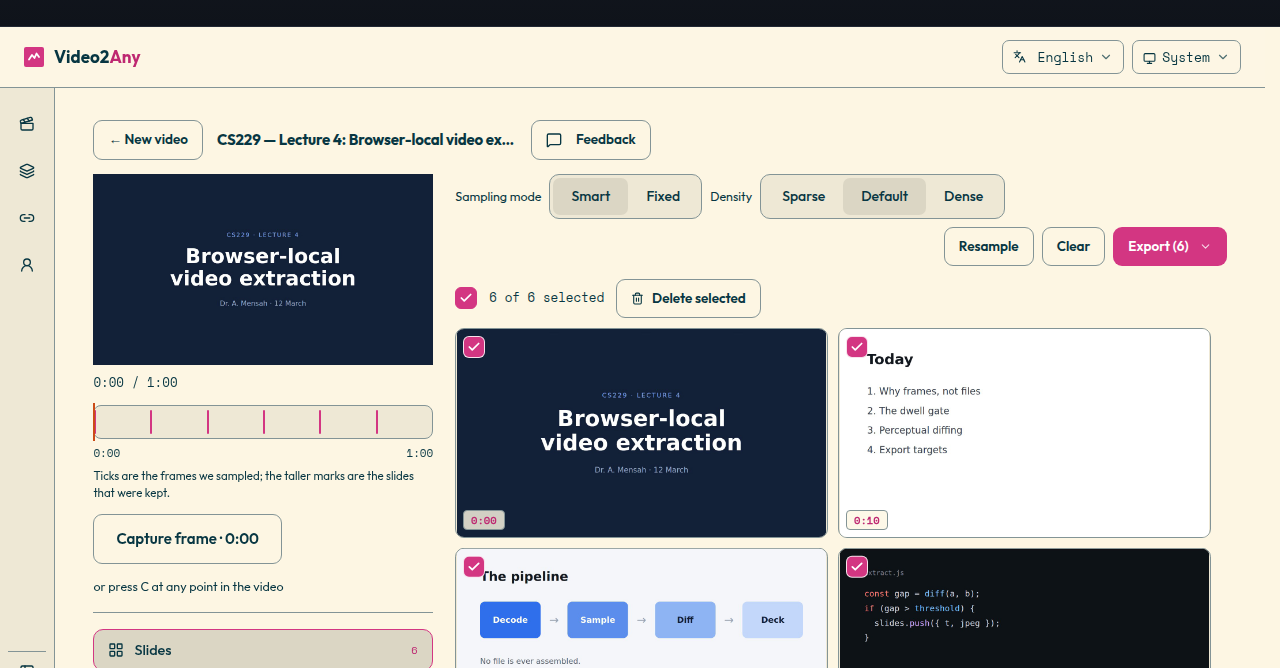
4. Export PDF and inspect the result
Choose PDF in the editor. The export puts one slide image on each landscape 16:9 page, with empty space where the image does not fill the page.
Open the downloaded file and check the smallest text, the first content page, and the final content page. This catches an unreadable source, an accidental intro capture, or a missing conclusion before you rely on the document for revision.
The first 30 minutes of each video are free without an account. Free PDF and PPTX exports include a Video2Any credit page at the end. For a longer recording, check the current plans before starting a full-length conversion.
Keep the video’s URL and title with your study notes so you can return to the spoken explanation. Capturing the visual page is not the same as preserving the speaker’s full argument.
What stays local—and what does not
For a local file, slide extraction runs on your device and the video is not uploaded. For YouTube, the extension reads still frames from the open player rather than downloading the video stream.
Do not extend that claim to every feature. If you request cloud AI Notes or transcription, audio is sent for that job, and notes with pages also send page images. A signed-in account with library sync enabled can store the finished deck so it opens on another device.
For this PDF workflow, you do not need an AI Notes or transcription job. If your recording is sensitive, check the Account library-sync setting and your organization’s rules before saving or sharing the result.
Alternative: take screenshots manually for a short excerpt
If you need three slides rather than the whole lecture, manual capture may involve less setup.
- Pause when a complete slide is visible, not halfway through a transition.
- Take a screenshot of the slide area using your computer’s screenshot tool.
- Name the images in order, such as
01-introductionand02-diagram. - Put one image per page in a document editor you already use.
- Add the video URL and relevant timestamps, then export the document as PDF.
This gives you precise control over what to keep. The trade-off is repetition: you must find every slide, capture it, and maintain the order yourself. Enlarging a small screenshot will not restore detail, either.
The other alternative is the original deck mentioned above. It remains the best choice when you need selectable text or the presenter’s actual PowerPoint file rather than pictures from the recording.
Common problems and what to do next
The captured pages are blank. A protected player, embedded frame, or unreadable playback surface can prevent capture. Try the video on its own YouTube page. If that still fails, use a local file only if you have a permitted copy; Video2Any does not bypass protections.
The PDF has more pages than expected. The recording may include animations, builds, repeated explanations, or non-slide screens. Review the retained pages before export. See the guide to removing excess slides from a video conversion.
The words look blurry. Return to the source and check the playback quality. If the words are already unreadable there, changing the export format cannot fix them. Look for the original deck or a better recording.
Frequently asked questions
Can I get the original PowerPoint from a YouTube video?
Only if the creator shares the file separately. Extracting the visible frames gives you images of the slides, not the original text boxes, chart data, animations, or speaker notes. A PPTX export can contain those images, but it is not the source presentation.
Can I save the slides without downloading the video?
Yes. Video2Any’s extension reads the frames from the video you can already play in your browser. Keep that tab open until it finishes. This is different from pasting a URL into a service that downloads the recording for you.
Will the PDF include what the presenter says?
Not in this slide-image export. It contains the visual pages. Spoken notes and transcripts are separate workflows, with different processing and privacy requirements. Do not expect narration that never appeared on screen to become part of the PDF automatically.
Can I select or search the text in the PDF?
The exported PDF has no text layer: each page is an image. A PDF reader may offer its own OCR, but that is separate from Video2Any’s export. You can still annotate or draw on the document in a suitable reader.
Does this work without YouTube captions?
Slide extraction reads the picture, not the caption track. Missing subtitles do not prevent capturing visible slides. Clear, mostly static presentation pages work best; fast animations and small text require closer review.
Can I extract slides from a live stream?
The extension needs a recording with a timeline it can sample. Wait until the stream has ended and its recording is available. Playback restrictions and protected video can still prevent capture.
Ready to keep the pages rather than rewrite the talk? Open YouTube slide extraction, capture the recording you are allowed to use, and review the pages before saving your PDF.