How to extract PowerPoint slides from a lecture video
A recorded lecture usually contains the one thing people actually go back for: the slides. Yet the deck itself often never gets shared — the course ends, the speaker moves on, the learning platform only hosts the video. The good news is that if the slides appeared on screen, they can be extracted.
This guide uses Video2Any, a converter that runs entirely in your browser. It watches the recording for real slide changes, keeps one clean frame per slide, and rebuilds them as a PowerPoint deck or PDF. It does not ask an AI to rewrite the material — you get the original slides, as shown.
Step by step
Load the recording into the converter
Open the lecture-to-slides converter and drop the video file in — MP4, WebM, and MOV all work. If the lecture is only online, record the playback with the built-in screen recorder instead. Local files never upload; your browser reads them directly on your machine.
Let the detector find the slide changes
The converter steps through the recording and compares frames. When the picture changes and then holds stable — a new slide rather than a gesture or a cursor — it keeps one clean frame. A 45-minute lecture typically finishes in a few minutes, because there is no upload and no queue: everything runs at your computer’s speed.
Review the detected slides
Before anything is exported you get a preview grid of every detected slide. Drop the accidental captures — a stray transition, the presenter’s desktop — and remove duplicates where the professor flipped back and forth. This one review pass is what makes the final deck feel intentional.
Export as PPTX or PDF
Export the deck as an .pptx for PowerPoint, Google Slides, or Keynote, as a PDF handout, or as a .zip of frame images.
What the output actually looks like
We ran MIT’s opening 6.0001 lecture — a full classroom recording published by MIT OpenCourseWare — through this exact flow. The detector found 46 distinct slides; three of them are below, exactly as extracted.
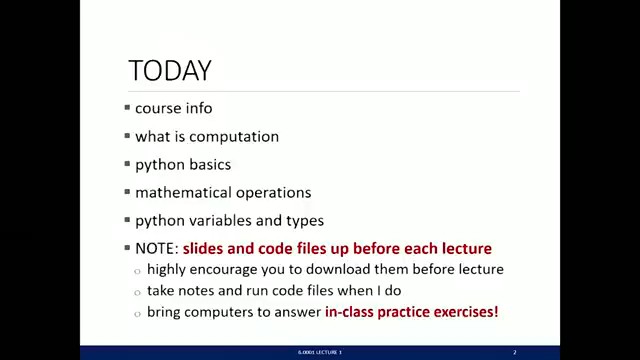
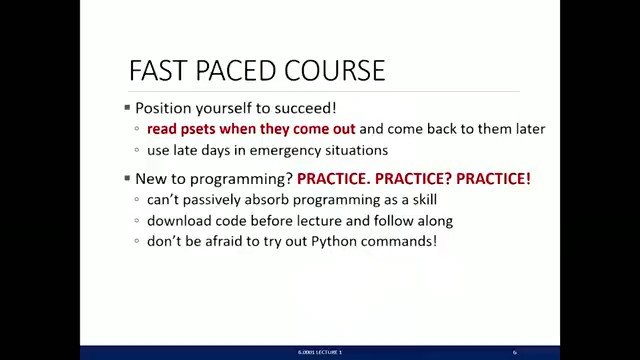
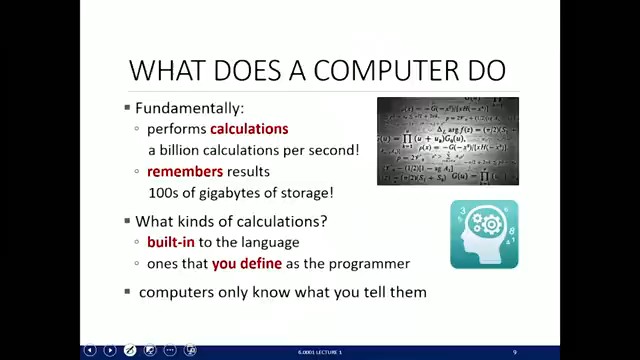
Browse all 46 extracted slidesGet the sample .pptx
Source video: MIT OpenCourseWare, 6.0001 Fall 2016, Lecture 1 — CC BY-NC-SA 4.0.
Lecture recordings that need extra care
Camera pointed at a projector screen
Extraction still works, but expect keystone distortion, room lighting, and the occasional head in the frame. Use the highest-resolution version of the recording you can find, and review the preview grid a little more strictly.
The presenter overlays part of the deck
Picture-in-picture layouts are handled — detection reacts to the slide area changing, not to the presenter moving. Text hidden behind the overlay stays hidden, though: nothing here can recover what was never on screen.
Slides with builds and animations
A slide that reveals five bullets one by one may be detected more than once. Keep the final, complete state and delete the partial ones during review — or keep them all if the build order matters for your notes.
What this does — and does not — produce
To set expectations precisely: the export contains the original slide frames as images. It does not reconstruct every text box, chart, and shape of the professor’s original file into native PowerPoint objects — no tool working from pixels can honestly promise that.
Where your recording goes: nowhere
Course recordings are often not yours to re-upload — many universities restrict redistribution. Browser-local processing sidesteps the question entirely: the file is decoded on your machine, frames are compared on your machine, and the deck is built on your machine. Close the tab and it is all gone.
Frequently asked questions
- Is extracting slides from a lecture video free?
- The first 30 minutes of every video are free, for as many videos as you like, and you do not need an account. A recording under 30 minutes converts in full. A free account adds one full-length video, and the free PowerPoint and PDF files end with one credit slide.
- How long does a one-hour lecture take?
- Usually a few minutes, depending on your computer. The video is decoded locally, so there is no upload time and no server queue.
- Can I extract slides from a lecture that is on YouTube?
- Not from the link: Video2Any does not take videos from YouTube or any other site. If the lecture is yours, open the original file you uploaded; if it belongs to someone else, ask them for the file or the slides. The page about your own YouTube videos has the details.