Turn a lecture recording into notes, not just slides
A lecture recording is the worst possible study format. You can’t skim it, search it, or highlight it, and re-watching an hour to find one definition is a wasted evening.
Slides alone don’t fix that either — they show what was on screen, but not what the lecturer said about it. Real notes are both: the visuals and the words. Here’s how to get both out of one recording, without uploading anything.
From recording to notes, step by step
Open the recording in your browser
Drop the lecture file — MP4, WebM, or MOV — straight onto Video2Any, or paste a supported link. Local files are read inside the tab and never uploaded, so even a two-hour recording starts processing right away.
Let it recover the slides
Video2Any watches for the moments the on-screen slide actually changes and keeps one clean frame each. You get the real slides, in order, as a PowerPoint deck or PDF — not an AI’s guess at what they might have contained.
Add the transcript for the spoken detail
Transcribe the audio to text so you also have what the lecturer said around each slide. The slides plus the transcript are your notes: visuals you can see, words you can search, quote, and translate.
Review, trim, and export
Skim the detected slides on the timeline, delete duplicates or stray transition frames, then export. You end up with a deck you can annotate and a transcript you can set right beside it.
What the recovered slides actually look like
Not a mockup: we ran MIT’s opening 6.0001 lecture recording through this exact flow. It detected the distinct slides and rebuilt them as a deck — three of them below, exactly as extracted.
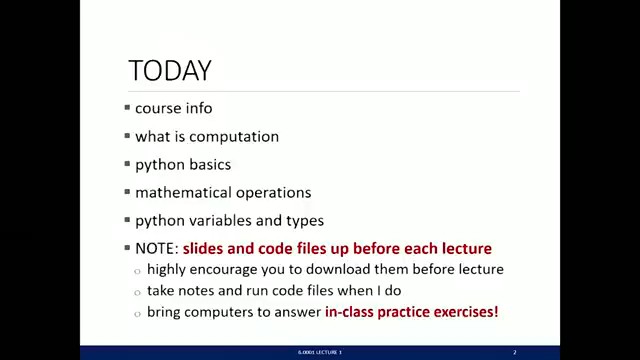
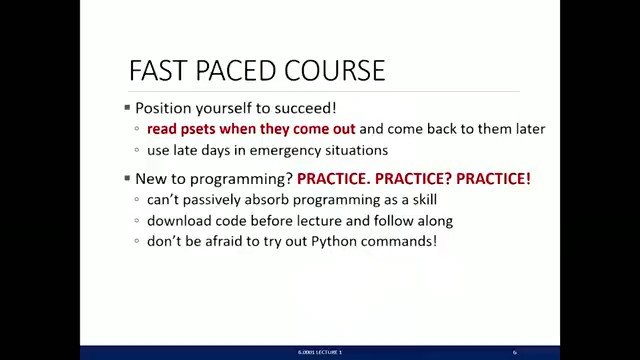
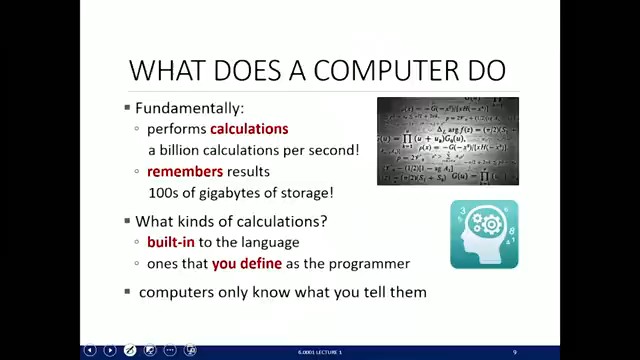
Browse the full extracted deckDownload the sample .pptx (first 12 slides, 0.5 MB)
Source video: MIT OpenCourseWare, 6.0001 Fall 2016, Lecture 1 — CC BY-NC-SA 4.0.
Getting cleaner notes
Best results come from slide-heavy recordings
The detector keys off visual change, so screen shares and slide-driven lectures convert best. A handheld camera, fast cuts, or a tiny slide in the corner of a large video are harder — crop to the slide region first if your recording allows it.
Trim before you export, not after
It’s quicker to delete duplicate and transition frames on the timeline than to clean up a bloated deck later, and a tight deck reads better against the transcript.
Keep the transcript verbatim, summarize later
Export the words as they were said so nothing is lost. You can always condense them into your own summary; you can’t recover a point an auto-summary quietly dropped.
What this does — and what it doesn’t
Video2Any recovers the slides that were really on screen and transcribes what was said. It does not write the summary for you: the .pptx holds the original slide frames, and the transcript is the raw words. Automated note and quiz generation is planned for the Studio tier, but the default is faithful material you stay in control of.
Your recording stays yours
Local files are decoded, compared, and transcribed inside your browser tab — the recording never touches a server. That matters for coursework and internal sessions that shouldn’t be uploaded somewhere just to become notes.
FAQ
- Is it free?
- Converting your own recordings is free, with no account and no mark on the slides. A recording under 30 minutes converts in full; a longer one has its first 30 minutes read, and every account gets one full-length video free.
- Do I get the slides and a transcript, or just one?
- Both, from a single pass. The slides export as PowerPoint or PDF; the transcript exports as plain text, or as timed .srt / .vtt subtitles when you want timing.
- Will it summarize the lecture for me?
- Not by default — you get the real slides and the real words so nothing is invented or dropped. AI note generation is on the roadmap for the Studio tier.
- What if the lecturer is on camera, not just the slides?
- As long as the slides are readable on screen for a few seconds, they’ll be detected even with the speaker in frame. Motion-heavy footage and fast cuts are the hard cases.