Skip to content
Video2Any
Free local tool
Processed in this tab

Turn an Echo360 recording into a PowerPoint deck

Open the class on Echo360, click the extension, get an .pptx.

An Echo360 class is usually watch-only, so the Video2Any extension reads the slides straight off the player instead — it downloads no video; it reads still pictures off the player.

  1. Open the class on Echo360's own page — the address bar should show echo360.org or your school's Echo360 address, not Canvas, Blackboard or Moodle.
  2. If the camera is the large picture, swap it in the player first so the Display source with the slides is large.
  3. Click the Video2Any icon in the toolbar. The editor opens in a new tab and reads the class out of this one — keep this tab open until it finishes.

What it got out of a real recording

Combining crowdsourcing and expertise in Digital Humanities · Olivier Aubert · FOSDEM 2021 · Open Research Tools devroom

  1. Slide 1 of “Combining crowdsourcing and expertise in Digital Humanities”, kept at 0:00

    #1 · 0:00

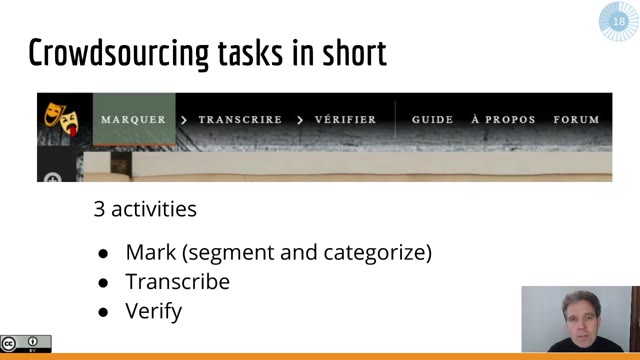
  2. Slide 4 of “Combining crowdsourcing and expertise in Digital Humanities”, kept at 0:42

    #4 · 0:42

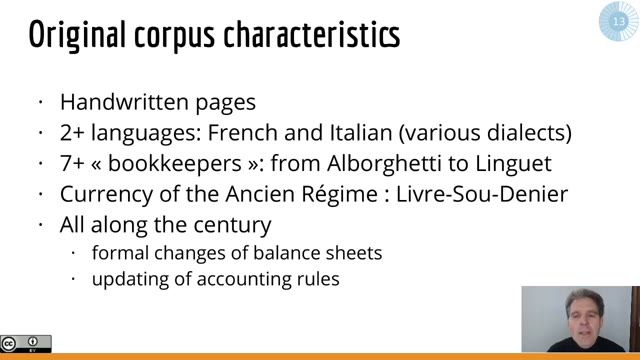
  3. Slide 14 of “Combining crowdsourcing and expertise in Digital Humanities”, kept at 6:13

    #14 · 6:13

  4. Slide 16 of “Combining crowdsourcing and expertise in Digital Humanities”, kept at 7:21

    #16 · 7:21

  5. Slide 19 of “Combining crowdsourcing and expertise in Digital Humanities”, kept at 9:49

    #19 · 9:49

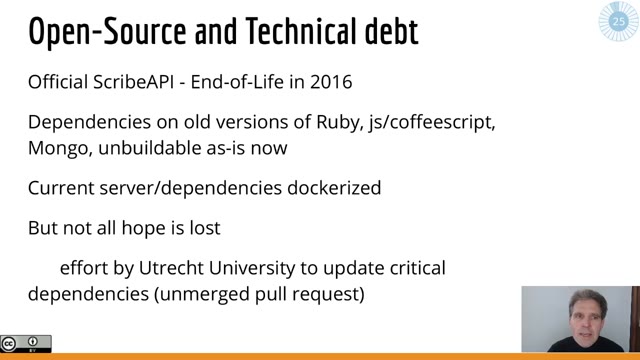
  6. Slide 26 of “Combining crowdsourcing and expertise in Digital Humanities”, kept at 12:55

    #26 · 12:55

15:54 of recording → 29 slides kept

Recording from FOSDEM, used under CC BY 2.0 BE. open the recording · Rights concern? request removal

Echo360, now called EchoVideo, keeps a class as several separate video sources rather than one file, and whether any of them can be downloaded is a switch the instructor controls per source. Video2Any reads the recording straight out of Echo360's own player with a free browser extension and rebuilds the screen as PowerPoint slides, without turning the class into a file. Where the instructor uploaded the actual slide deck, that beats reading it off video, and this page shows where to look for that first.

Where an Echo360 class actually lives

An Echo360 class is not a file sitting inside Canvas, Blackboard, Moodle or Brightspace. Those pages embed a player that streams from Echo360's own site — echo360.org, or the .org.uk, .org.au or .ca address for some schools — and the recording lives there, tied to that course.

A class is actually made of separate sources rather than one video: a "Display" source for the screen, a "Video" source for the camera, sometimes a second Display. Whether one of those can be downloaded is a per-source switch the instructor turns on, and when it is on, a Display download is only the screen, not the class as the player shows it.

Open the class on Echo360, not the course embed

The extension reads whatever is playing in the tab you click it from, so an Echo360 class embedded inside Canvas or Blackboard sits inside a frame the extension cannot see into — clicking there gets "No video on this page." Open the class on Echo360's own page instead: the address bar shows echo360.org or your school's regional Echo360 address, not your school's Canvas or Blackboard address.

The course link into Echo360 usually opens straight there, or a link next to the embed views the class on Echo360 directly. From that page, click the Video2Any icon. It opens in a new tab and starts reading the class out of the Echo360 tab, which has to stay open until the run finishes but does not need to stay in front.

Display and Video, and which one gets read

Echo360 shows the Display and Video sources one large and one small, side by side, or as a picture in picture, and the player remembers whichever layout you last chose. The slides live in the Display source, so that is the one that needs to be the large picture when Video2Any reads the tab.

If the camera is set as the large picture, swap it before clicking the toolbar icon — the extension reads whichever stream is large, not the one named for the slides. A class recorded with two Display sources, one for a document camera and one for slides, works the same way: whichever one is large when you click is the one read.

What counts as a slide

A frame becomes a slide once the screen changes and then holds still for a few seconds, the same behaviour as an instructor actually moving to the next slide. A cursor crossing the Display, a window being resized, or a live coding demo never holds still long enough to qualify, no matter how long it stays on screen.

A slide that reveals its bullets one at a time changes several times before it settles, so Video2Any waits for the version it rests on and keeps only that. A frame that should not be there is one click to remove in the review grid, and a moment that got skipped can be pulled back in from the timeline instead of running the class again.

Check the class content first — the slides may already be there

When an instructor uploads their actual PowerPoint file to Echo360, the class page can show it as a presentation you can page through. That is the original file, not a picture of it read off video, and it beats anything Video2Any can produce from frames.

Look at the class content list before running the extension: if a presentation is attached there, use that instead, and save the extension for the classes where no such file exists — most of them, since attaching the deck is a step many instructors skip.

What comes back, and the one thing that does not

The export defaults to a .pptx that PowerPoint, Keynote and Google Slides all open, each slide being the frame itself, so the words on it are part of the picture. The same run also produces PDF, Word, Markdown with the images, a folder of frames, and a one-page overview PNG of the whole class.

What a run started from the extension does not produce is a transcript or subtitles — only picture frames cross out of the Echo360 tab, never audio. EchoVideo often already carries its own transcript in the player, worth checking before assuming there is none. Where a Display download is enabled, that .mp4 dropped into the box above gives you subtitles and a transcript as well.

Nothing gets downloaded, and it is still your class

The extension never assembles a video file out of what it reads. It sends still frames to the Video2Any tab in your browser, where the slides are built on your own computer — no download of its own, no standing access to Echo360 beyond the one tab you clicked it from, and no copy of the class kept anywhere once the deck is built.

It also only reads what your own login can already watch — a class you are enrolled in, through your own account. What comes back is study notes, not a copy of the recording, and nothing about an instructor's per-source download setting changes because of it.

Length, cost, and when it says no

A class under 30 minutes converts free and in full, and a longer one has its first 30 minutes read — said before the run starts; a free account reads one long class in full, once. After that, $2.99 unlocks two more and $49 is a one-time payment that removes the limit for good — nothing here is a subscription.

Two messages mean two different fixes. "No video on this page" means the click landed on the Canvas or Blackboard embed rather than Echo360's own page — open the class there instead. "The video has not loaded" means playback has not started yet — press play for a second, then click the icon again.

Does this download my Echo360 class?
No — only still picture frames pass from the Echo360 tab to the Video2Any tab in your browser, where the slides are built. The video itself never moves, and no file is created at any point.
It says "No video on this page." What do I do?
That means the click happened on the embed inside Canvas, Blackboard or Moodle rather than Echo360's own page. Open the class on echo360.org, or your school's regional Echo360 address, and click the icon again there.
The camera is large and the slides are small. How do I fix that?
Swap the Display and Video sources in the Echo360 player so the Display — the one with the slides — is the large picture, before clicking the Video2Any icon. The extension reads whichever stream is showing large.
Do I get a transcript with the slides?
Not from a run started off the extension — only frames cross, no audio. EchoVideo often already has its own transcript in the player, and if a Display download is enabled, the .mp4 dropped into the box above produces a transcript from the audio.
Is it allowed to do this with a class recording?
It reads a class your login can already watch, for a course you are enrolled in, and turns it into study notes, not a copy of the recording. No instructor setting changes, and no file is ever created.
Can I edit the text on the slides afterwards?
No — each slide is the frame exactly as it was on screen, so the words on it are part of the picture. In PowerPoint, Keynote or Google Slides you can reorder, crop, delete and annotate those slides, and put your own text box over a line you want to change, but the original words are not characters you can select.
How long can the class be, and what does it cost?
Length is not capped. A video under 30 minutes converts free and in full; a longer one has its first 30 minutes read, and Video2Any says so before starting. A free account reads one long class in full, once, and after that $2.99 unlocks two more or $49 removes the limit for good.
The instructor already posted the slides. Do I still need this?
Check the class content list first — if a PowerPoint is attached, that is the original file and beats anything read off video. Save the extension for classes where nothing was attached, which is most of them.