AI video translator 2026: when a lecture needs the original slides
Search for an AI video translator in 2026 and you will mostly find tools that make a new version of the video in another language: a dubbed voice, often with lip-sync, and translated captions. That is a real job. It is also the wrong job for a lot of lecture recordings.
If you are trying to study from a talk, the useful object is usually not a redubbed file. It is the slides the speaker actually showed, plus a written record of what they said. Those are different outputs, built in a different way.
On this page
Two jobs that get searched as one
An AI video translator is built to replace the soundtrack. Tools in that category, such as HeyGen, Rask, and Kapwing, take an existing video and produce a translated version you can watch. The picture generally stays the video: a talking head, a screen share, or both, now with a new voice and new captions. That is the right choice when the deliverable is a video for an audience that does not speak the original language, for example a product demo or a course you plan to republish.
A lecture recording is usually a different problem. The speaker already put the structure of the talk on slides. Formulas, diagrams, and the exact wording on a page are what you want to review later. A dubbed video still makes you scrub through the timeline to find page 17. Translated captions help you follow the speech, but they do not give you a deck you can read, annotate, or print. If the translator leaves the original slide images in the picture, any text on those pages also stays in the original language.
So the question is not "which translator is best in 2026". It is "what do I need to keep from this recording".
What to keep from a lecture recording
For most students and most internal talks, three things are enough:
- The original slides, as they appeared on screen, in order, without the speaker's camera covering the chart.
- Spoken notes, written from the talk, tied to those pages.
- A transcript, word for word, if you need the exact wording or a subtitle file.
The first of those is the one that gets lost when you reach for a translator. Notes and a transcript can be translated later, in a document, if you need them in another language. The slide images are much harder to reconstruct once you have thrown the recording at a tool that only thinks in audio and captions.
That is the job Video2Any is built for. It is not an AI video translator. It does not dub a voice, lip-sync a speaker, or produce a translated video file, and it does not rewrite the wording that was on the slides.
How Video2Any treats a lecture
The default run is slide extraction. You drop a local MP4, WebM, or MOV on the extract-slides page, or, for a YouTube talk, a course portal, or a Zoom cloud recording, you use the Chrome or Edge extension on the tab that is already playing the video. There is no box for pasting a link. The extension reads frames from the player you can already watch; it does not download a copy of the video.
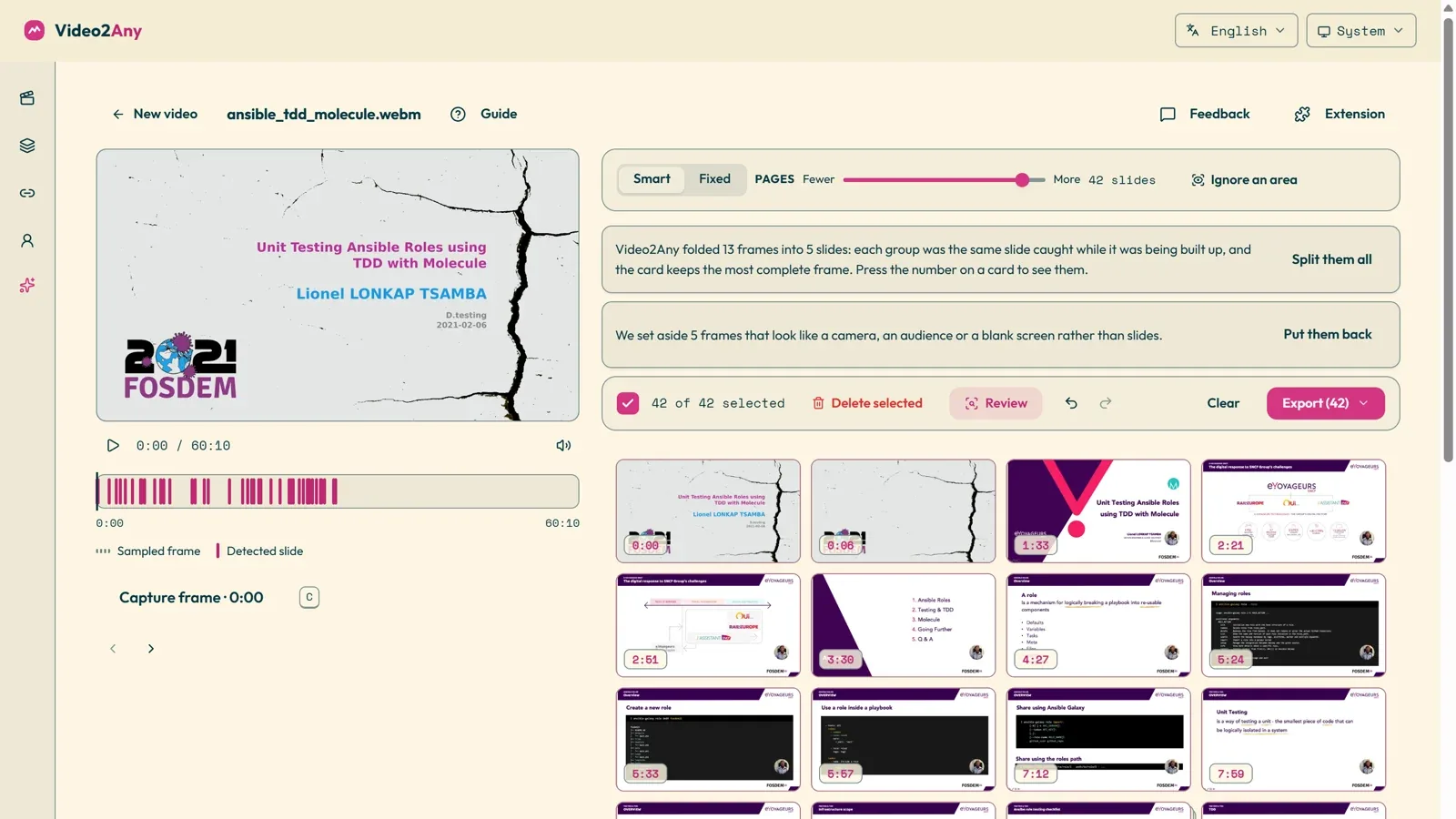
Slide extraction runs in your browser. The video file is not uploaded. Each page in the result is a picture of what was on screen, so the layout you saw is the layout you get. Text on those pages is not editable, and the tool does not generate a new deck from the narration. If you already have the speaker's original PDF, use that instead: no screenshot-based tool can recover a page the recording never showed.
A guide to the lecture-video case is in How to extract PowerPoint slides from a lecture video. For a YouTube recording, how to save the slides as a PDF walks through the extension route.
Notes and a transcript are additive, not the default. After the pages are in the editor, you can start spoken notes for those pages, or run a transcript when the useful output is the words, not a deck.
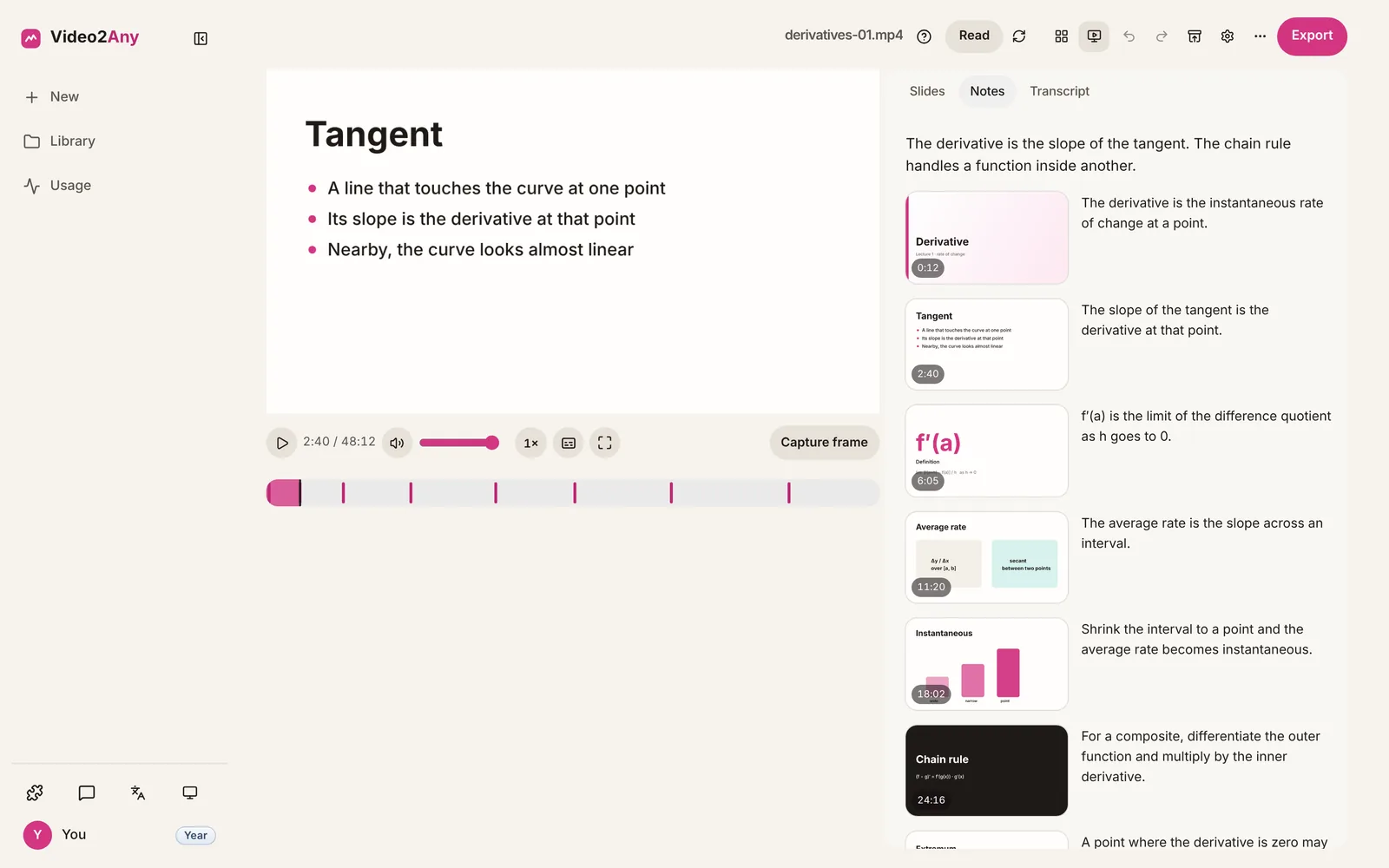
Starting notes or a transcript sends the audio; when notes are written against pages, the page images go too. The first 30 minutes of every recording are free for slide extraction, with no account required. Notes and transcripts use AI minutes, and the current rates are on the pricing page.
Exports match the job. The deck can go out as PowerPoint, PDF, Word, Markdown, or a ZIP of page images. Notes export as Markdown, Word, or PDF. The transcript exports as TXT or SRT. There is also a package that keeps the slides, the notes, and the transcript together, and Anki cards if you want a review deck. A video-to-notes run is the route when the talk, not only the pages, is what you need to keep.
When a translator is still the right tool
Choose a video translator when the finished artefact has to be a video: a dubbed lesson you will publish, a multilingual product walk-through, or a talk whose audience will watch rather than read. In that case, look at how the tool handles review of the translated script, speaker voices, and, if you need it, lip-sync. Those are the questions that category is built to answer.
Choose slide extraction, then notes and a transcript, when you will study from the pages, share a reading pack, or keep an internal record of a lecture or meeting. If you also need a translated video later, you can still run a translator on the original recording. Starting with the original slides means you are not depending on the dubbed file to be your only copy of the diagrams.
If a course already published the deck, take the deck. If the recording is only a talking head, a transcript or written notes will help more than a slide export. And only process recordings you have permission to use for that purpose.
A short way to decide
Ask what you will open next week. If the answer is a video in another language, use a video translator. If the answer is page 17 of the slides, and the sentence the speaker said over it, recover the original slides first, then add the notes and the transcript. That second path is the one Video2Any is for.