How to convert video to GIF online for free
On this page
Turn a short moment from an MP4, WebM, MOV, or another video into a GIF you can paste into a message, document, issue, or social post. No upload, account, or watermark required.
Open the video to GIF converter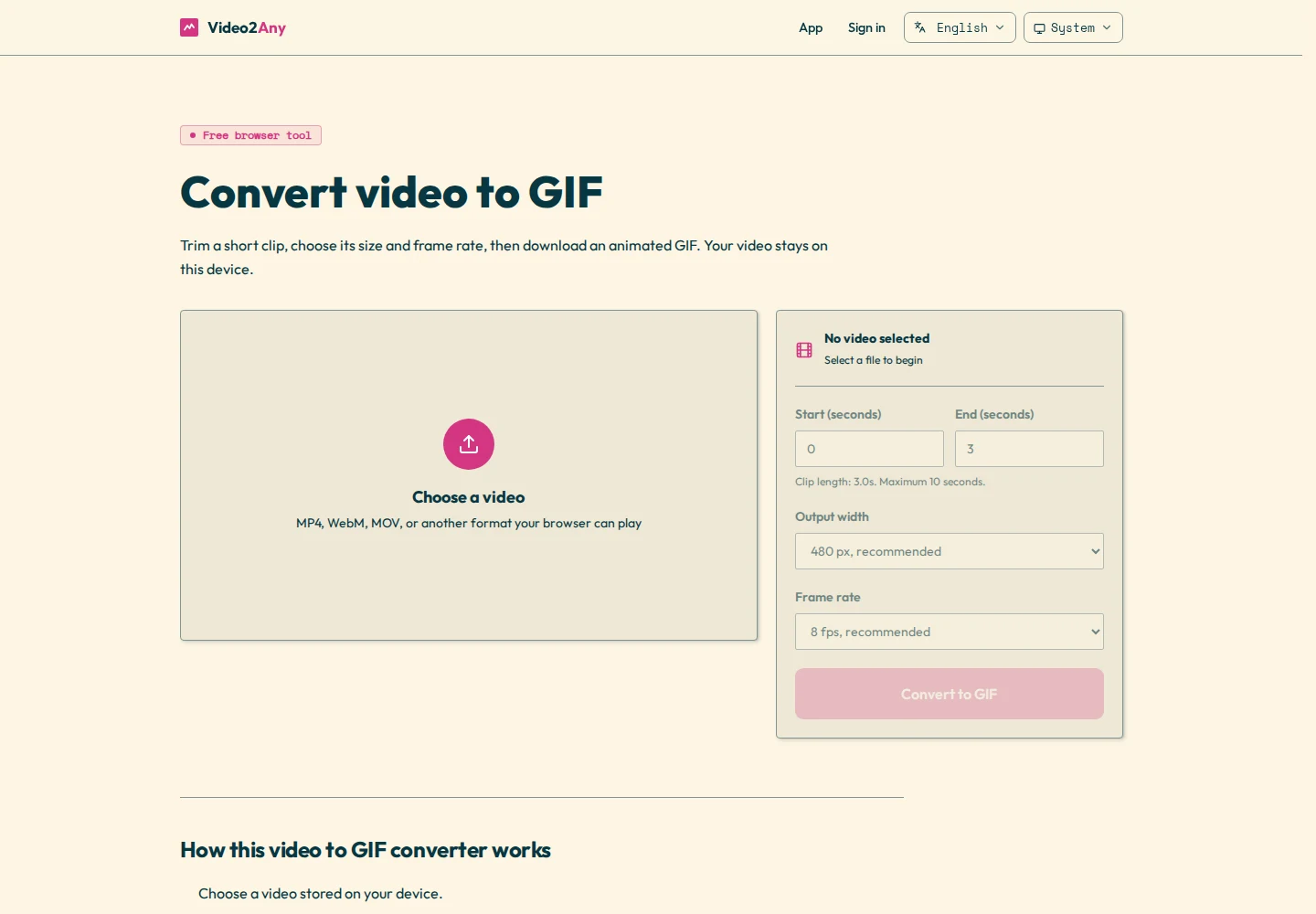
1. Choose your video
Open the video to GIF tool and select Choose a video. Pick an MP4, WebM, MOV, or another video format your browser can play. The video opens directly from your device and is not uploaded to Video2Any.
2. Select the moment you want
Play the video to find the useful moment, then enter its Start and End times. GIF files grow quickly because every frame is stored as an image. A focused clip of 2 to 6 seconds is usually easier to share than a long animation. The converter accepts clips up to 10 seconds.
3. Choose the output width
- 320 px: best for compact reactions, chat messages, and smaller files.
- 480 px: the recommended balance for product demos and most web use.
- 640 px: sharper text and interface details, with a larger file size.
4. Choose the frame rate
Use 5 fps when file size matters, 8 fps for a balanced result, or 10 fps when the clip contains quick movement. A higher frame rate looks smoother but creates more frames and a larger GIF.
5. Convert and save the GIF
Select Convert to GIF. Video2Any reads the selected frames, resizes them, reduces their color palette, and assembles the animation in this browser tab. When the preview appears, check the motion and file size, then select Save GIF.
How to make a smaller GIF
If the result is too large, shorten the clip first. Then reduce the width from 640 px to 480 or 320 px, or lower the frame rate from 10 fps to 8 or 5 fps. Trimming one unnecessary second often saves more space than lowering image quality.
Does Video2Any upload the video?
No. For this tool, video decoding, frame capture, color conversion, GIF encoding, preview, and saving all happen locally. Closing the tab releases the temporary browser URLs created for the source and output files.
Convert a video to GIF